# Music / Song
Music / Song composes a track from a prompt. Open it from AIGC, then AI Audio. Create music is the default; a canvas image can be the reference. The result is a card on the board that plays, clips, and edits in place.
## TL;DR: 6 steps
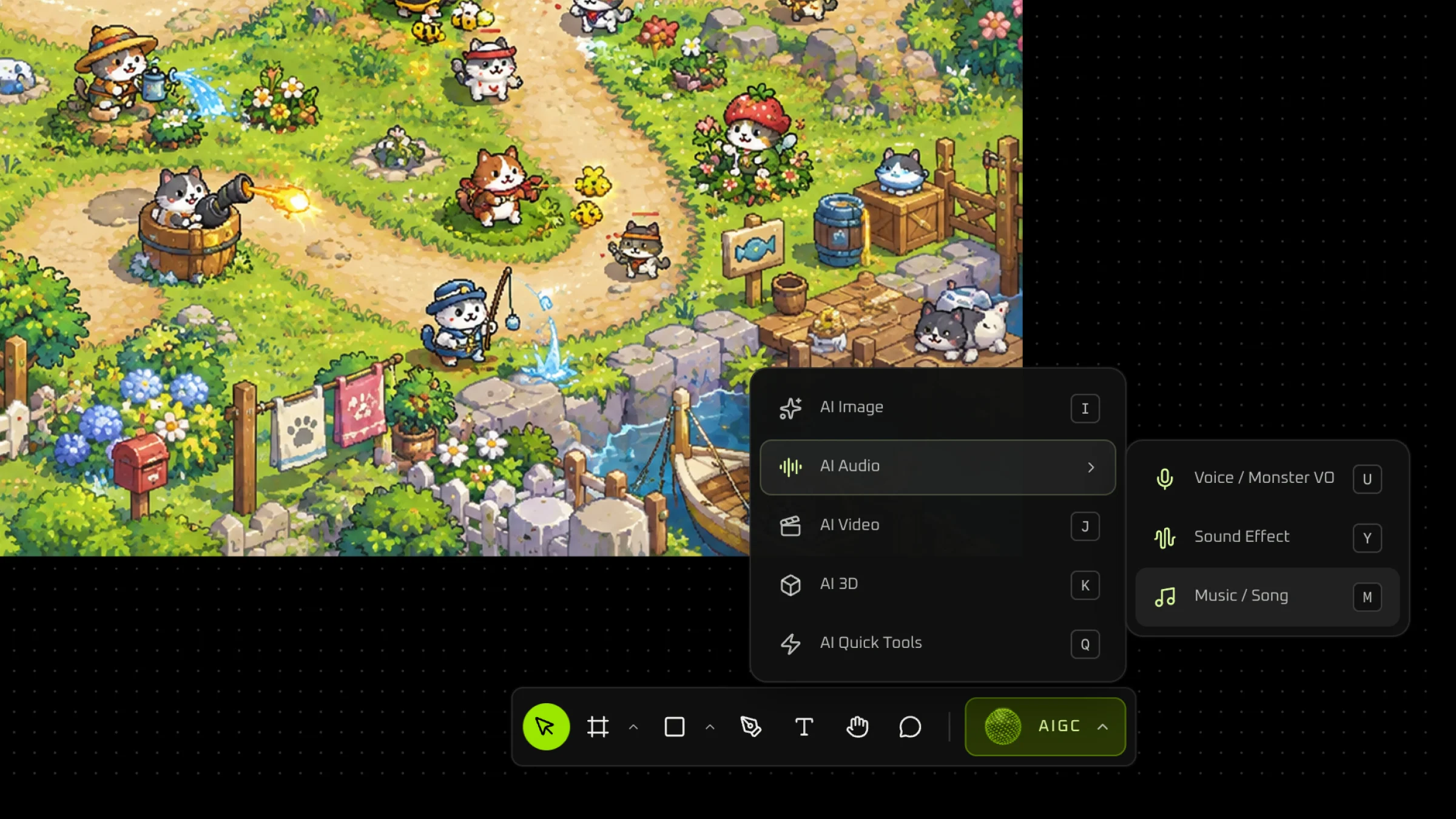
**Music / Song** writes a track from a text prompt and drops it on the canvas as a card. On the bottom toolbar, open **AIGC**, then **AI Audio**, then **Music / Song**. The panel starts on **Create music**. **Video/animation music** is the other mode, for a clip that already has pictures. A reference image is optional: **Pick from canvas**, click the plate, then write the prompt in **Music description**. The finished card can be played, clipped, and edited on the board.
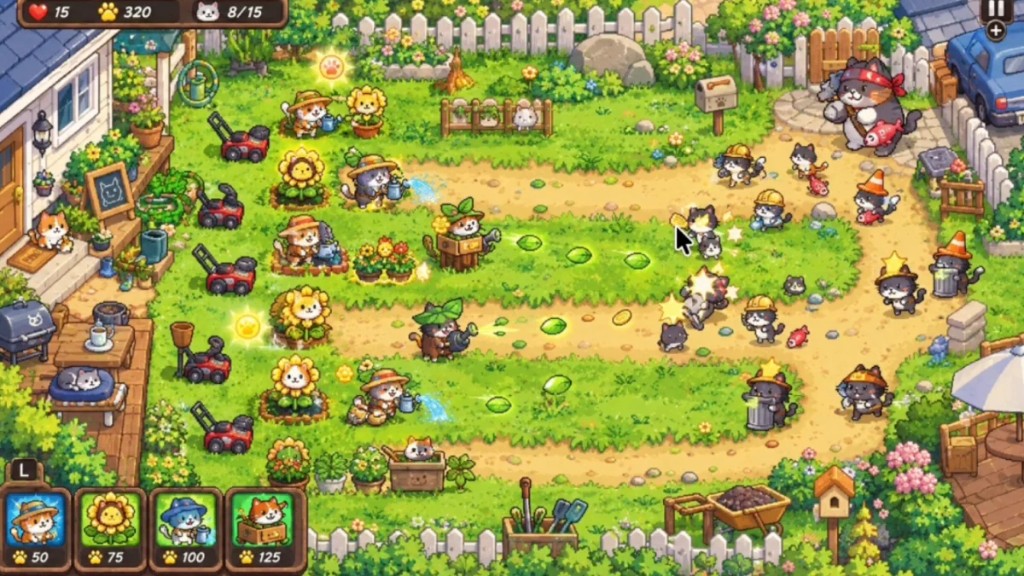
The plate in this walkthrough is a cat-garden scene.
## Step 1: Open Music / Song
On the bottom toolbar, open **AIGC**, then **AI Audio**, and choose **Music / Song**.
## Step 2: Stay on Create music
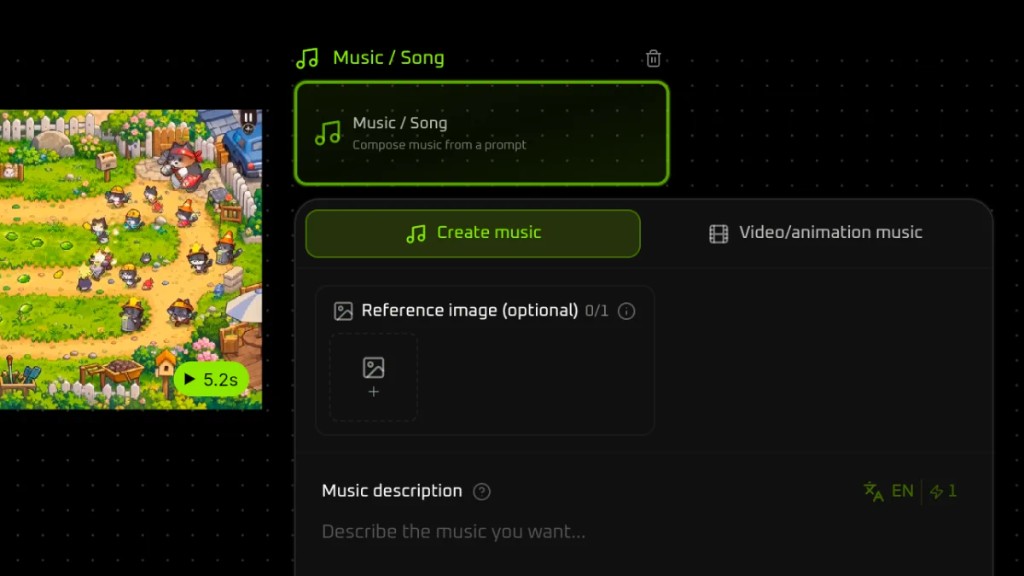
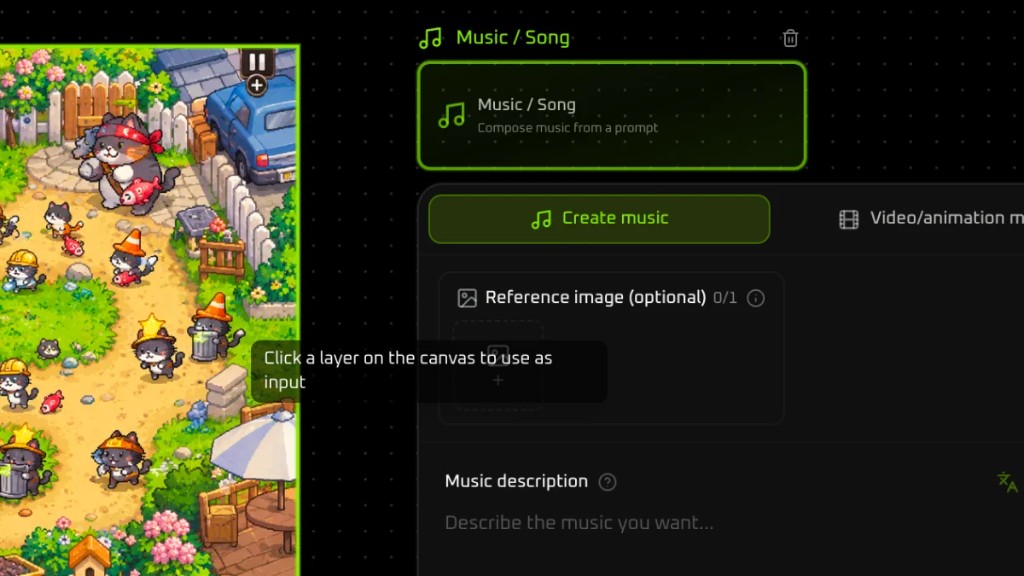
The panel is titled **Music / Song**. The line under the title reads “Compose music from a prompt”. **Create music** is already selected. **Video/animation music** sits beside it, for music that belongs to a video or an animation.
## Step 3: Pick a reference from the canvas
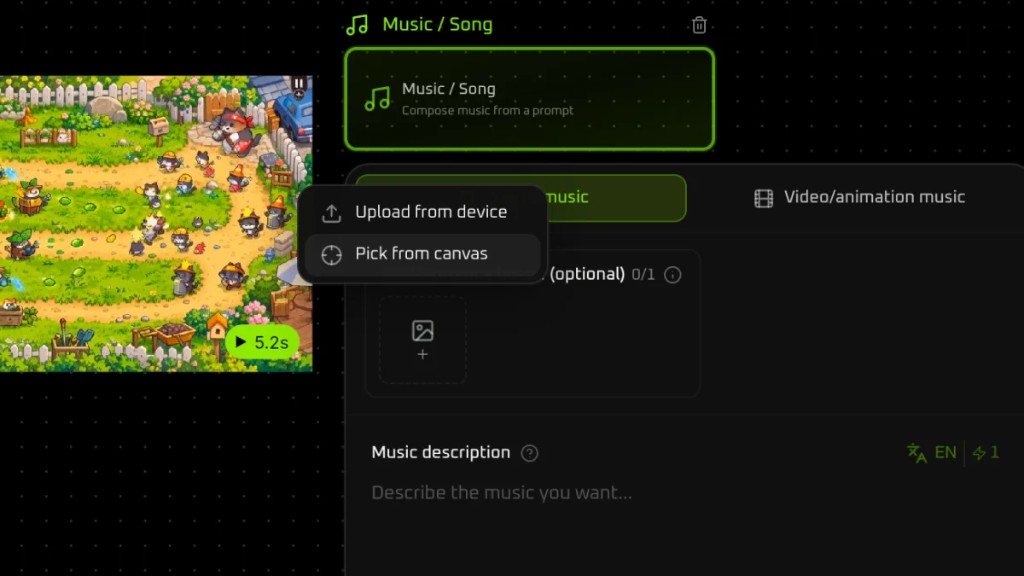
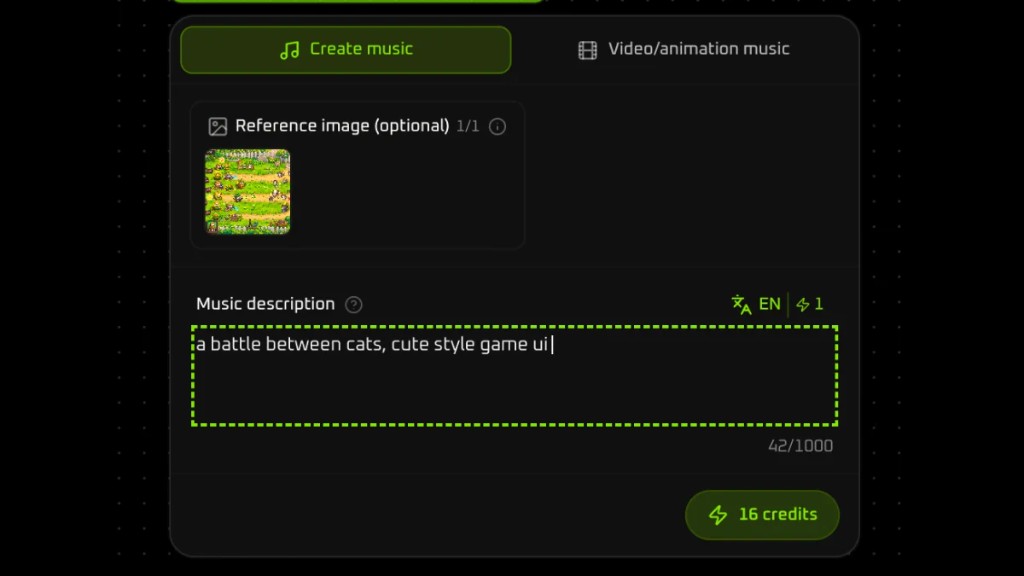
**Reference image** is optional and starts empty. Click the add control. The menu lists **Upload from device** and **Pick from canvas**. This walkthrough uses **Pick from canvas**, so the reference is a layer already on the board.
## Step 4: Click the layer
The pointer changes. The hint reads “Click a layer on the canvas to use as input”. Click the plate. It fills the reference slot.
## Step 5: Write the music description
In **Music description**, write the track. This pass uses `a battle between cats, cute style game ui`.
## Step 6: Play and edit the card
The track lands on the canvas as a card. This one is named **Music 1.mp3**, shows a duration of 2:58, and has a play control on the card. The toolbar above the card covers playback, clipping, and further edits.
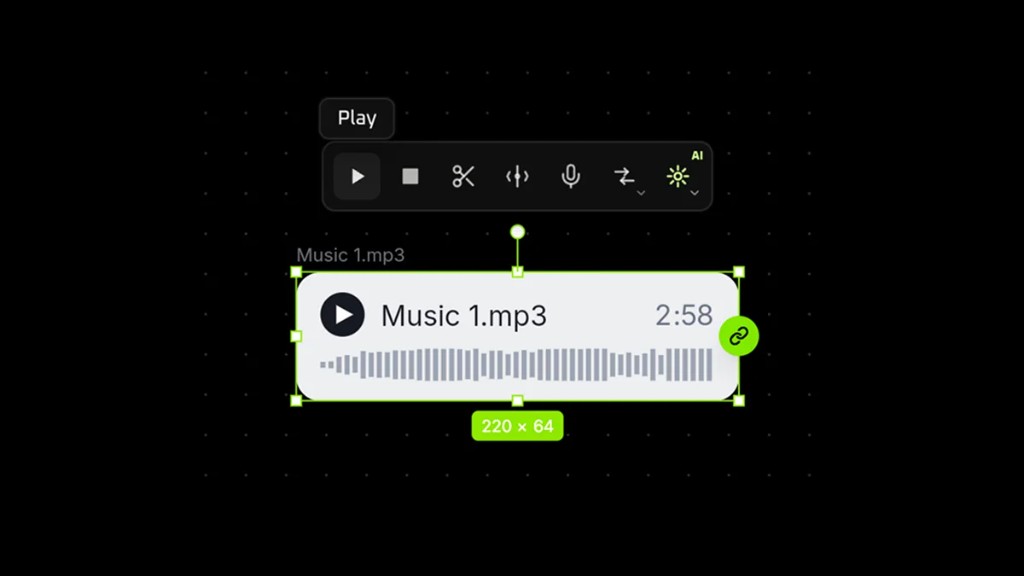
The file from this pass plays on the page.
Music_from_AI_Sound.mp3
## Walkthrough video