Extract Background
Remove characters and UI from a scene sprite to generate a clean background plate for reuse.
TL;DR: 3 steps
Extract Background fits a full scene sprite when the goal is a clean environment plate without characters, HUD, or interaction prompts. Open AI tools, then AI Extract, choose Extract Background, pick a model and size, then generate. The output is a reused background candidate—not a guaranteed pixel-perfect rebuild of every building edge.
Extract Background asks the model to reconstruct the scene without foreground actors and UI overlays, then returns a background-focused image for further art or level work.
Step 1: Start from a full scene sprite
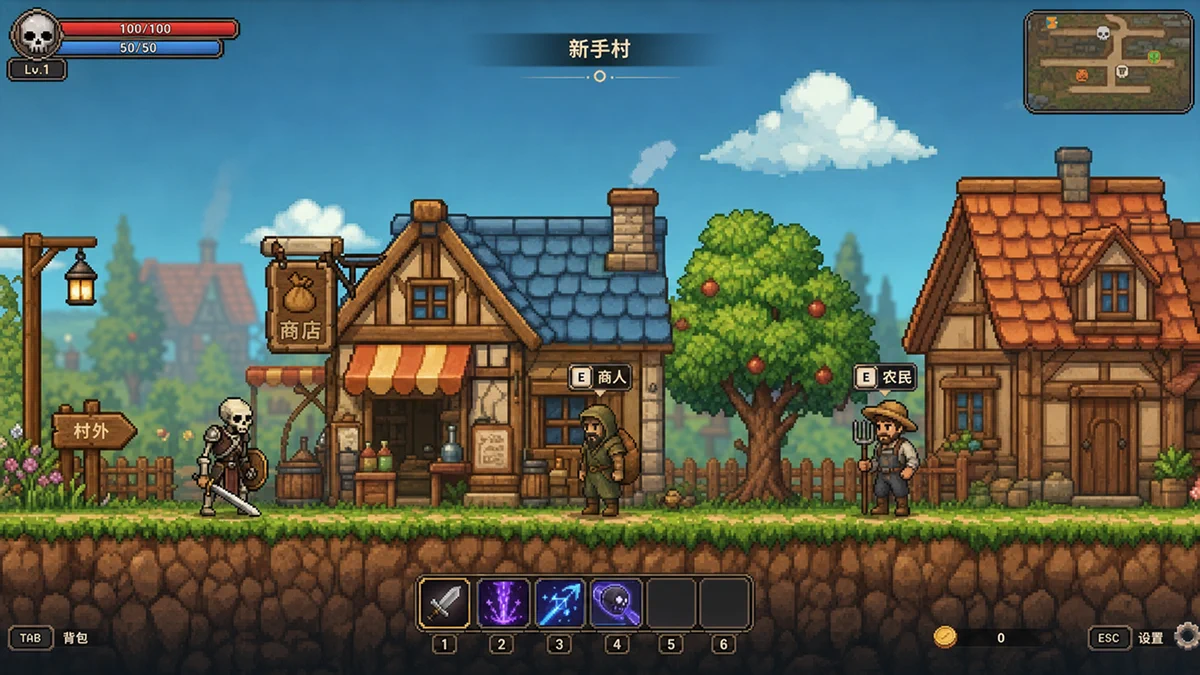
Use a scene that mixes environment, characters, and UI. The example below is a village shot with NPCs, HUD, and on-image labels still present.
Step 2: Open Extract Background and set model options
With the image selected, open AI tools, then AI Extract, and choose Extract Background.
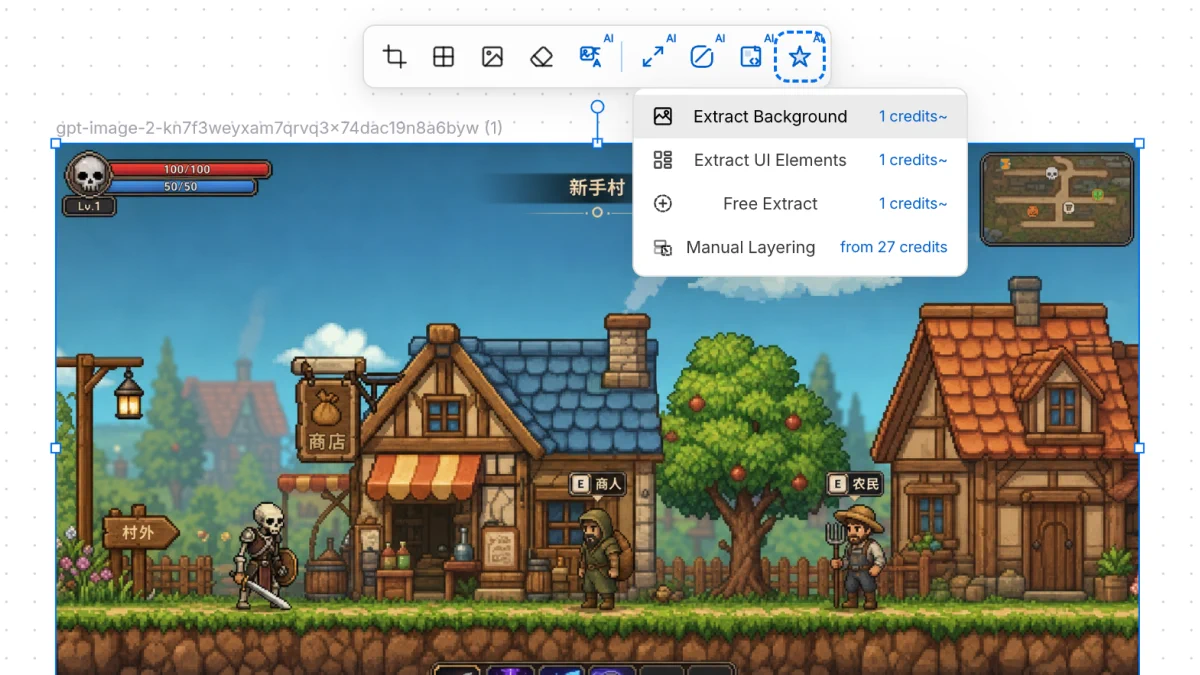
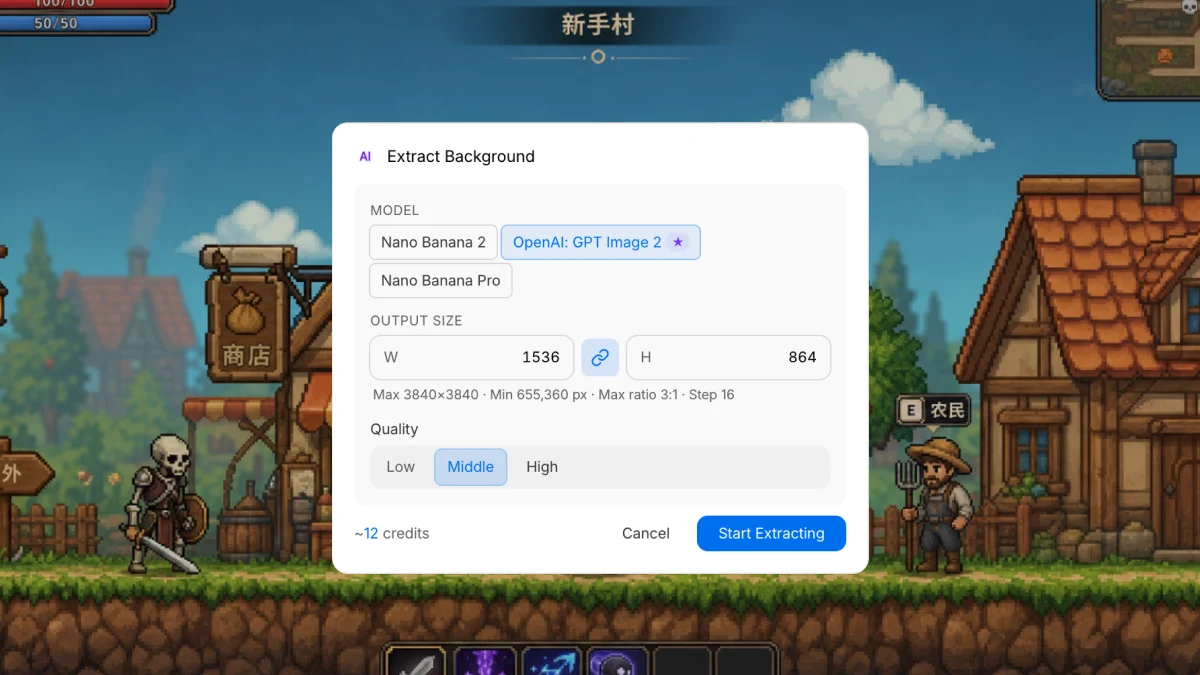
In the AI Extract Background dialog, pick a model (for example GPT Image 2), set output size and quality, then start extracting.
Step 3: Review the clean background result
The result drops characters and UI and keeps an environment plate—houses, ground, trees, sky—ready to reuse as a backdrop.
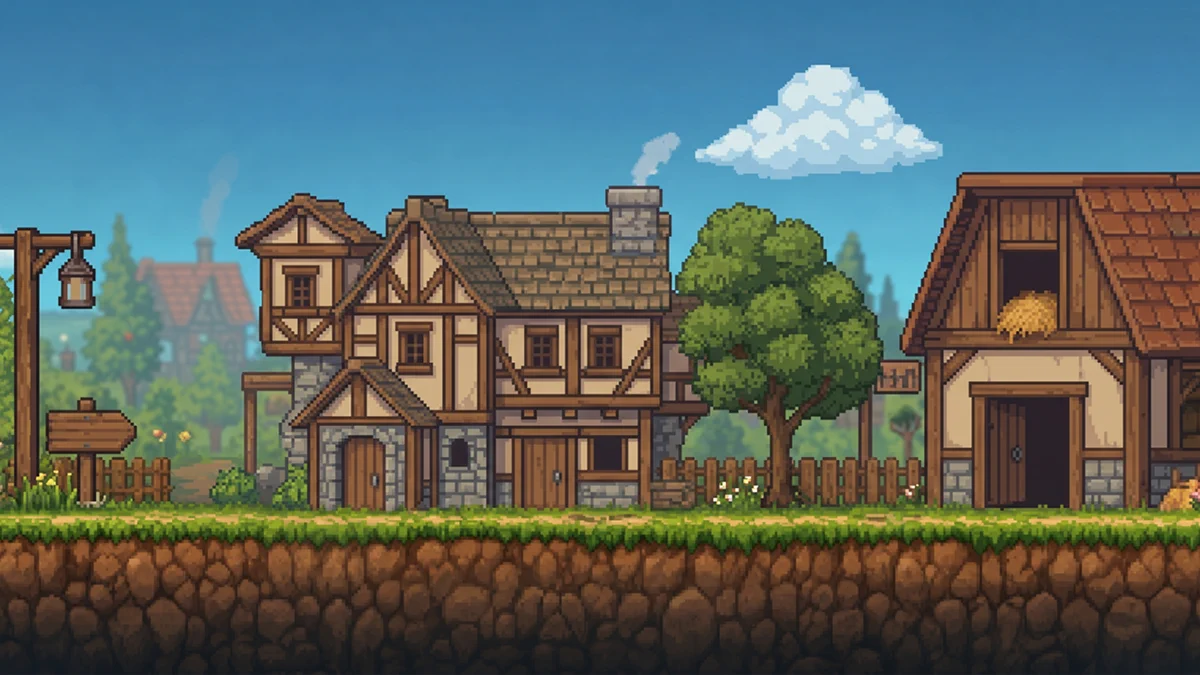
Extracted backgrounds are often not pixel-aligned with the source. In this example, building shapes and some art styling drift relative to the original frame. Plan a visual check (and light touch-up if needed) before treating the plate as production-locked.