Fine Cutout
Remove backgrounds from game sprites with strong edge handling for glows and semi-transparent layers—no generative redraw.
TL;DR: 3 steps
Fine Cutout fits sprites or UI captures that need a clean alpha cutout without running image generation. Edge quality is strong on glows, soft halos, and semi-transparent pixels—often better than generic remove-background services for game art. The pass is matting only: it removes the backdrop and keeps the foreground plate intact.
Open AI tools, then Remove Background, and choose Fine cutout. Select the image, run it, and export a transparent result for engine or further sprite work.
Step 1: Start from a source sprite or scene capture
Use a bitmap that still carries its original background—characters, HUD, glow icons, and environment in one frame.
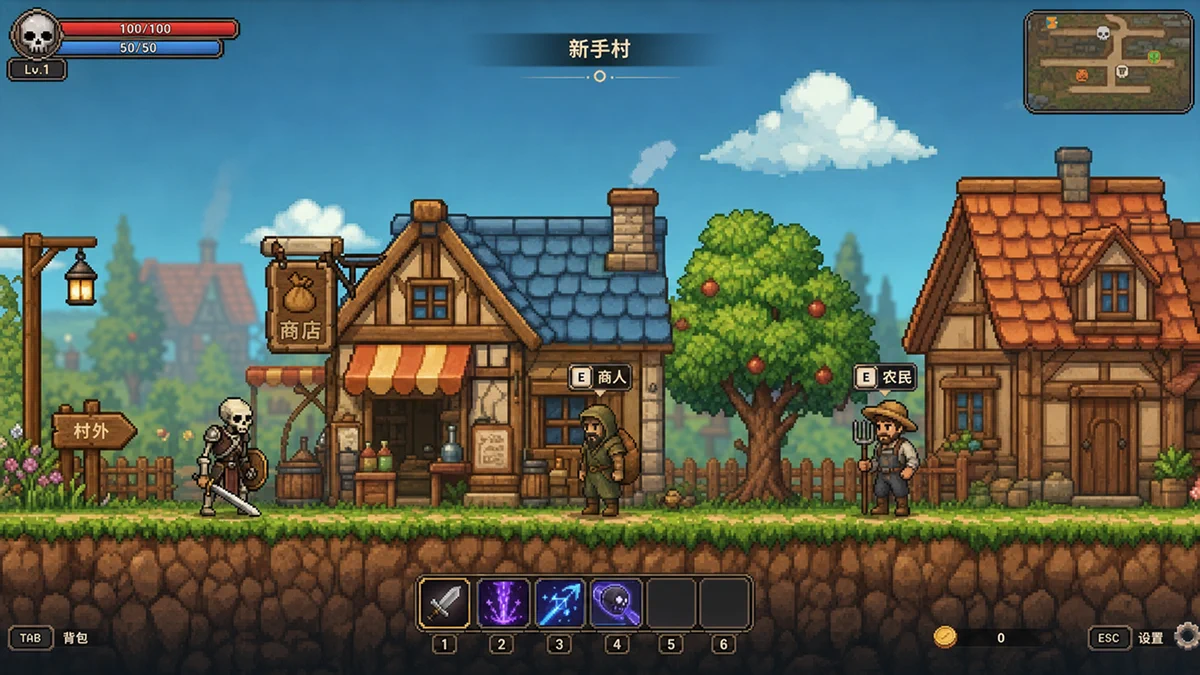
Step 2: Choose Fine cutout
With the image selected, open AI tools, then Remove Background, and choose Fine cutout.
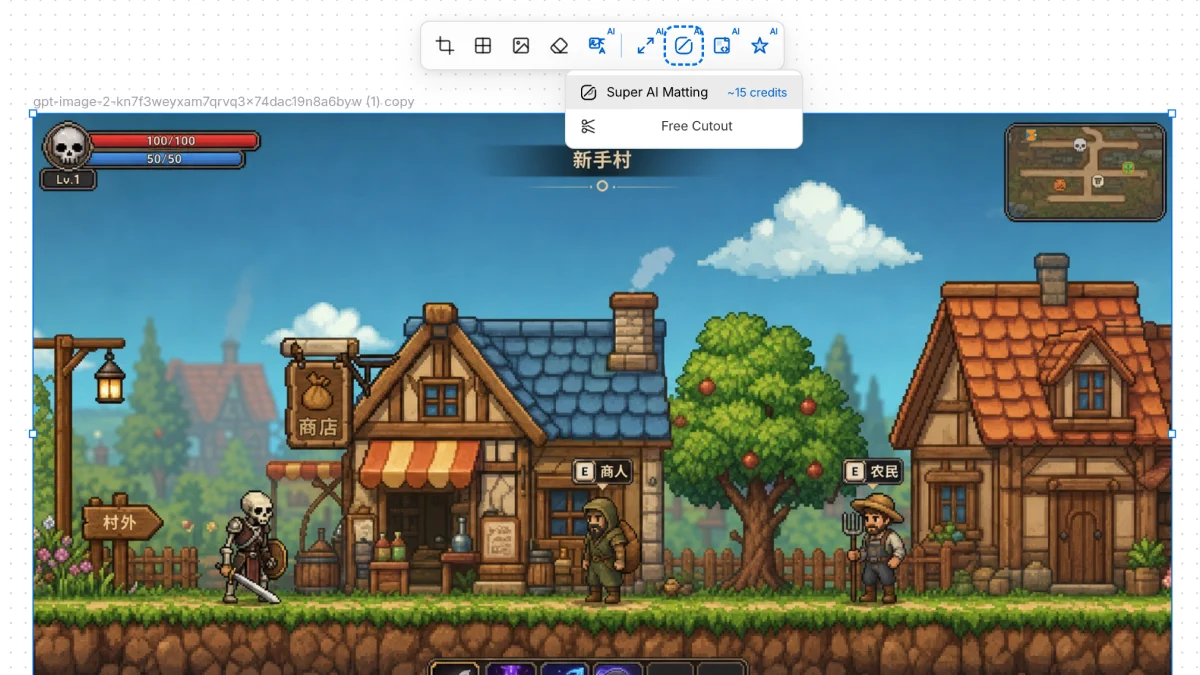
Step 3: Review the matted output
The output drops the scene backdrop while keeping foreground art and UI edges. Glow and semi-transparent regions tend to stay cleaner than typical auto-cutout tools tuned for photos.
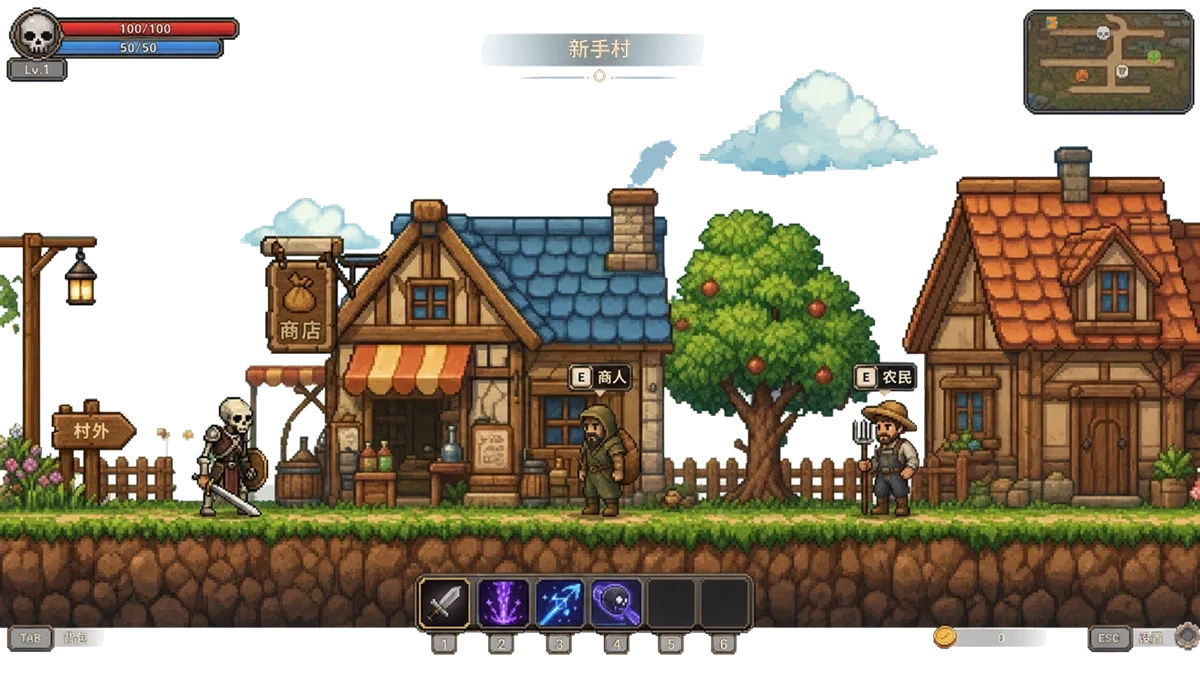
This path does not regenerate pixels—it mats what is already in the source. For game sprites with light bloom, magic trails, or soft icon edges, that difference matters when the cutout must land in-engine without a thick fringe.