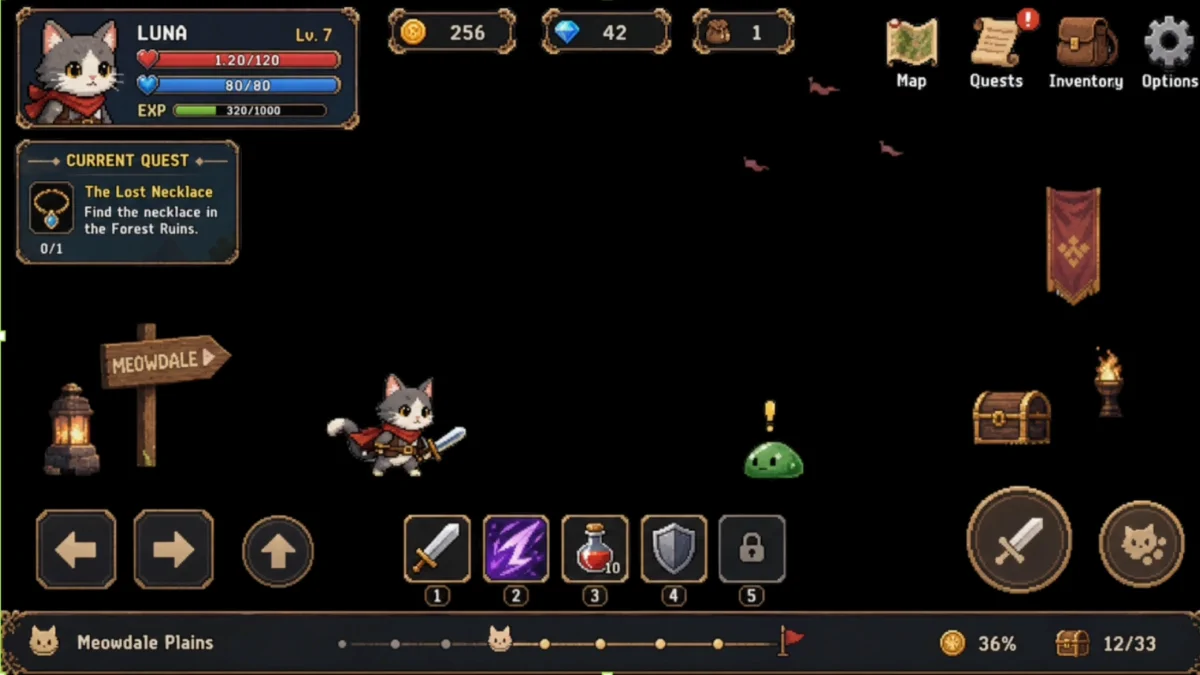
AI Background Removal
One-click background removal tuned for game UI scenes—keeps HUD and interface elements with high fidelity versus photo cutout tools like Pixian.ai and Remove.bg.
TL;DR: 3 steps
AI Background Removal fits full game UI / scene plates when the goal is a transparent (or clear) backdrop while HUD, buttons, labels, and other interface chrome stay intact. Retention of UI elements is the point of this path: it is tuned for game interface frames, where photo cutout services such as Pixian.ai and Remove.bg often shave or drop HUD pieces.
Open AI tools, then Remove Background, choose Remove background, run once, then check that scene environment is gone and UI layers remain usable for engine or further sprite work. For glow-heavy matting without a generative redraw, see Fine Cutout.
Step 1: Start from a game UI scene plate
Use a bitmap that mixes environment art with HUD and controls—status panels, quest cards, skill bar, virtual pad—still composited on the same frame.
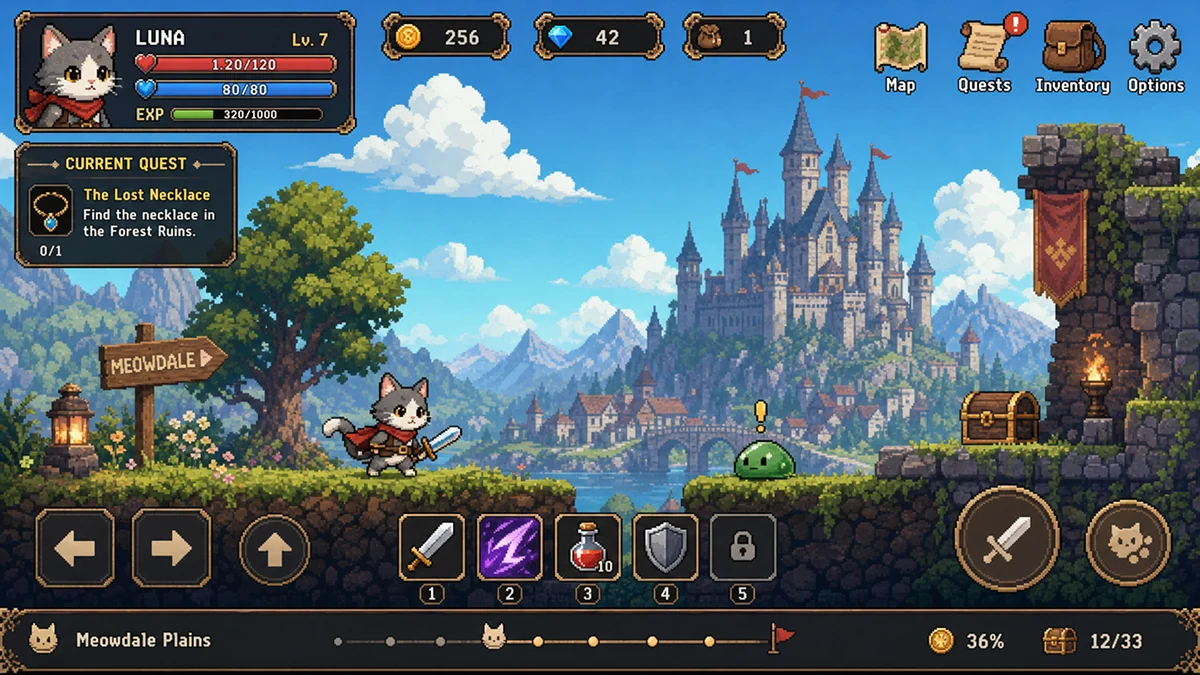
Step 2: Choose Remove background
With the image selected, open AI tools, then Remove Background, and choose Remove background.
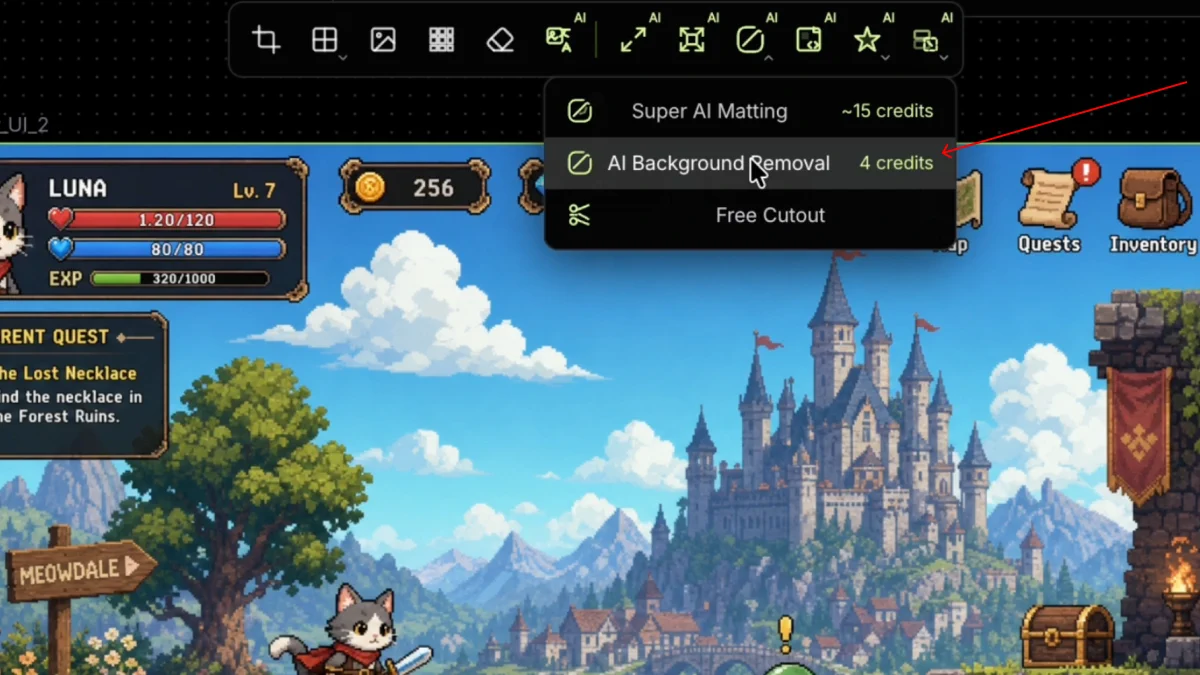
Step 3: Review UI retention on the cutout
The result drops the painted environment while keeping character sprites, signage, treasure, and the surrounding HUD. Check edges on panels and icons before export.