Restyle
Regenerate a screen’s visual style in VberAI Studio with Restyle—prompt a theme, keep layer relationships and image sizes one-to-one, and run the same pass across a live portfolio for a seasonal event.
TL;DR: 4 steps
Restyle fits a team carrying live titles into a seasonal event, where one holiday means a batch of finished boards rather than a single screen. In VberAI Studio, select the artboard, open AI tools, choose Restyle, describe the target theme, and the pass regenerates layer look from that prompt. Layer relationships and image sizes stay in one-to-one correspondence, so a restyled board still maps onto the structure the project already imports. Copy color often stays on the source; plan a later pass to unify labels.
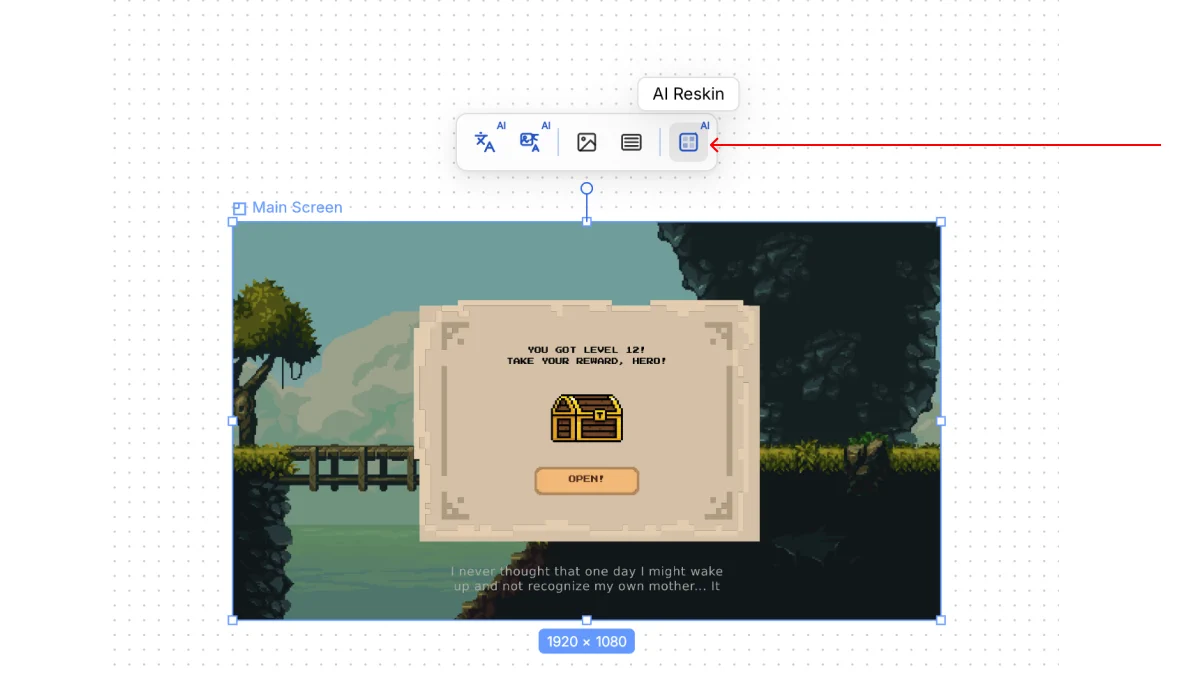
Step 1: Open Restyle on the selected board
In the Studio canvas, select the screen to restyle. Open AI tools, then choose Restyle.
Step 2: Enter a theme prompt
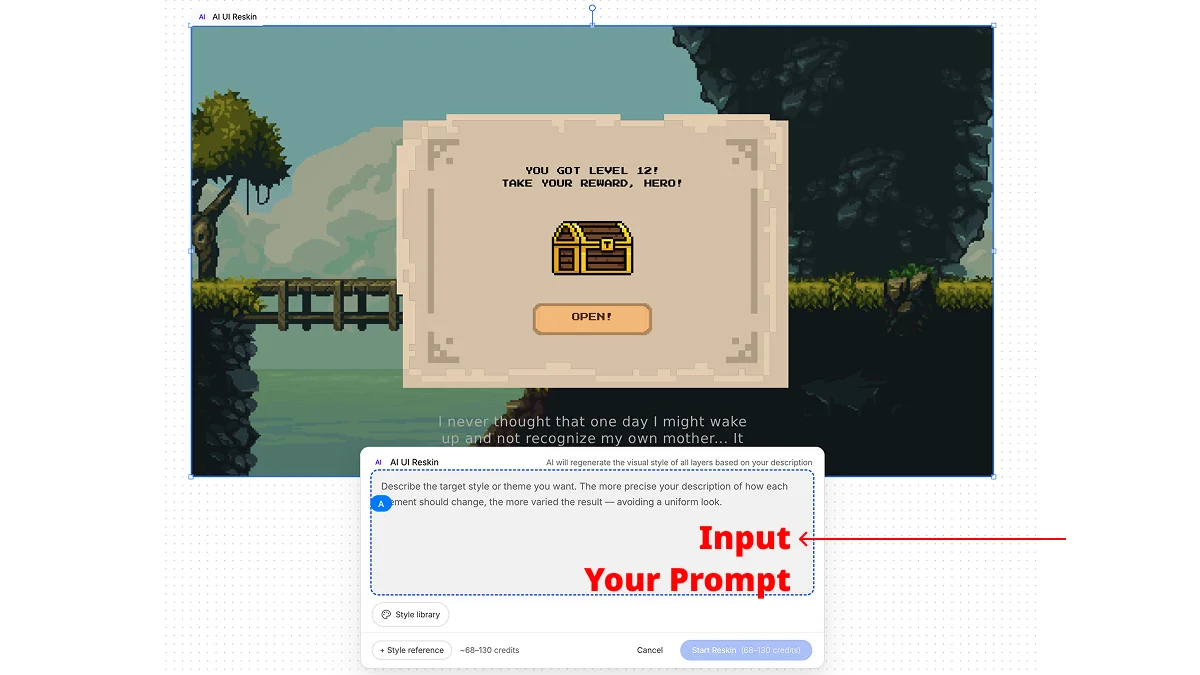
The Restyle dialog regenerates visual style from a description. Cost is shown before confirm.
Example prompt:
Halloween-themed page atmosphere
Step 3: Review the result
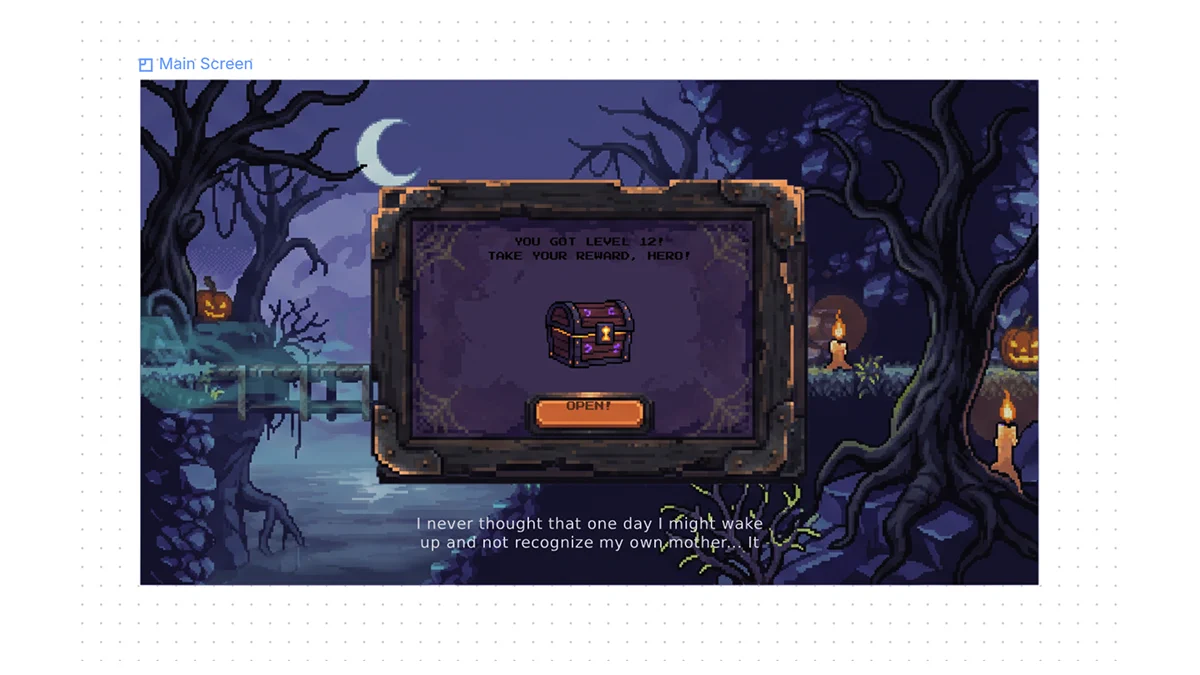
Wait for the run, then check the board. Environment, panel chrome, and props follow the theme; on-image text often keeps its source color, so labels may need a unified color pass afterward.
Step 4: Layer relationships and sizes
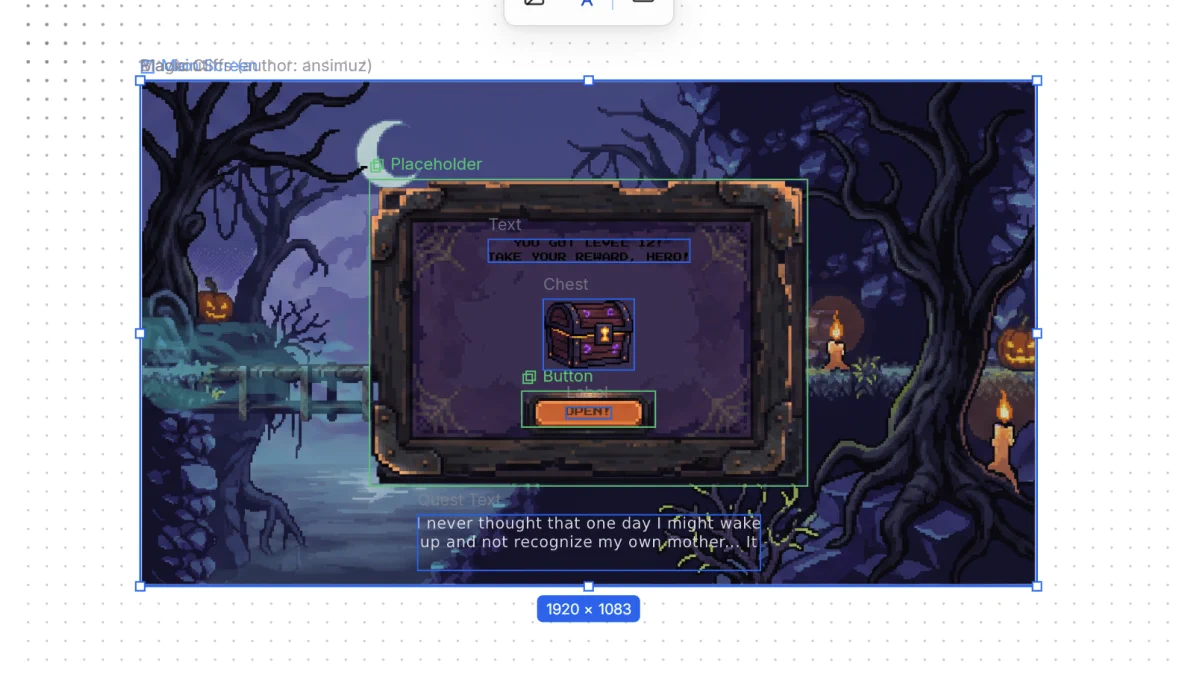
The best part is this: layer relationships and image sizes correspond one-to-one.
Running the same pass across a set
One screen is a single run. A seasonal event across live titles is the same run repeated against every board that ships, and the work shifts from writing the prompt to scheduling around it.
Three things decide whether a batch holds together:
- Prompt consistency. The same theme description has to land the same way on boards authored months apart. Write the theme once and reuse the exact wording rather than rephrasing per screen.
- The original environment parameters. Restyle replaces presentation and keeps the structured settings underneath. Those settings are what let a restyled board go back into the project, and they matter more as the set grows.
- Batch submission. Driving screens one at a time through the canvas stops scaling well before a full title is covered. Volume work needs batch API requests and responses.
Plan against total boards in the event rather than number of titles, since a game with four seasonal screens costs less to carry than one with forty.
Why this ends up being scheduling work: Running one seasonal reskin across many live game titles.
Walkthrough video
Restyle on a selected board, from prompt through the one-to-one layer result: