The Unity Codex Plugin: Engine-Side Skills Work, Batch UI Art Still Needs Another Pass
TL;DR
The common Unity Codex setup now looks like this: install Unity’s official unity-agent-plugin in Codex CLI, connect through MCP to an already open Unity 6 editor, then let the coding tool write URP, UI Toolkit, and in-app purchase code the way Unity’s current docs describe.
That stretch does work. Having the plugin installed only says that automated coding keeps getting smoother. What I still watch is how art assets are handled: batch processing of art, and sync between batch generation and code logic.
What the official plugin provides
The repo is Unity-Technologies/unity-agent-plugin, and Claude Code and Codex install from the same one. Eric Provencher at OpenAI posted a single line on September 10, “Codex now has a Unity plugin!”, and community write-ups followed from there.
The official page, Unity’s plugin for Codex, is clear and does not oversell: this is not an Asset Store package, and it cannot be installed from Package Manager. The README targets Unity 6+, and the sample status line reads unity@unity-agent-plugin installed, enabled 0.1.0-beta.
Install on the Codex side:
codex plugin marketplace add Unity-Technologies/unity-agent-plugin
codex plugin add unity@unity-agent-plugin
Start a new Codex session and type /unity: to list the Skills. Updates go through codex plugin marketplace upgrade unity-agent-plugin. Claude Code uses the same repo, with /plugin install unity@unity-agent-plugin in the session.
MCP connects to the open editor
In Unity 6, Edit → Project Settings → AI → Unity MCP shows whether the Bridge is Running. A first connection lands in Pending Connections and has to be approved with Accept inside the editor. Per the docs, transport is local IPC, so project source does not have to be uploaded for this.
Two panels are easy to mix up. The official plugin uses the MCP Bridge built into the Unity editor. The Unity MCP covered on this site is a separate service window on port 6594, for one-click setup in Cursor and Codex. Both run locally, and they are not the same panel. For how the channel itself works, see How MCP Connects AI Coding Tools to Game Engines.
Once the channel is up, the current scene, game objects, and Console logs can be read and changed. The condition is unchanged: cuts are already written into engine folders, and names still line up with nodes.
Skills cover how code is written in the project
The skills directory currently holds 31 modules. The UI- and image-related ones are ui, ui-uitk, ui-ugui, ui-imgui, manage-sprite-atlas, sprite-editor, and sprite-segment-3x3grid. The rest cover Tilemap, Pixel Perfect cameras, URP Render Graph, Shader Graph, and migrating Built-in to URP, plus in-app purchases, LevelPlay, multiplayer services, voice, TextMeshPro font fallback, WebGL, and Unity CLI builds.
The README examples stay at the same level: build a settings screen, fix pixel art shimmering when the camera moves, fix CJK text showing up as boxes in TextMeshPro, check Render Graph for a ScriptableRendererFeature. All of it happens after the project is open, inside the editor.
In other words, the plugin solves “stop producing ten-year-old code.” Its goal appears to be using AI to bring Unity’s legacy code assets up to the current standard and implementation.
Batch UI art still sits outside the plugin
ui-uitk answers whether a screen should use UI Toolkit or uGUI. manage-sprite-atlas answers how images already in the project get atlased. What shows up more often on my side is the step before: AI-generated store images, event popups, and HUDs, each one a single composite plate.
Those images have to be cut on detected edges, exported as files with meaningful names, and written into Assets/Textures and Assets/Prefabs, with the original layer context kept and in sync. One or two can be finished by hand. Regenerate the same screen, or swap a whole set for a holiday, and the count goes up. That step is not in the README or the Skills list.
Real-time mapping between a large set of unstructured cut images and the code project is the part that deserves attention. A coding tool reads file names and node names; whether a block of pixels is a button is not in that context, and later AI coding still cannot line events up.
Splitting a plate no longer takes time. Whether original position and interaction survive the import into Unity is what has to be watched. Related notes: Figma to Unity and Auto Layering: Image to Layers.
The path already in practice: generate and manage art assets in batch, on their own
Coding goes to Codex. With the official plugin added, writing code against an open Unity 6 takes less effort: generation follows the current docs, and console errors come back through MCP to be fixed.
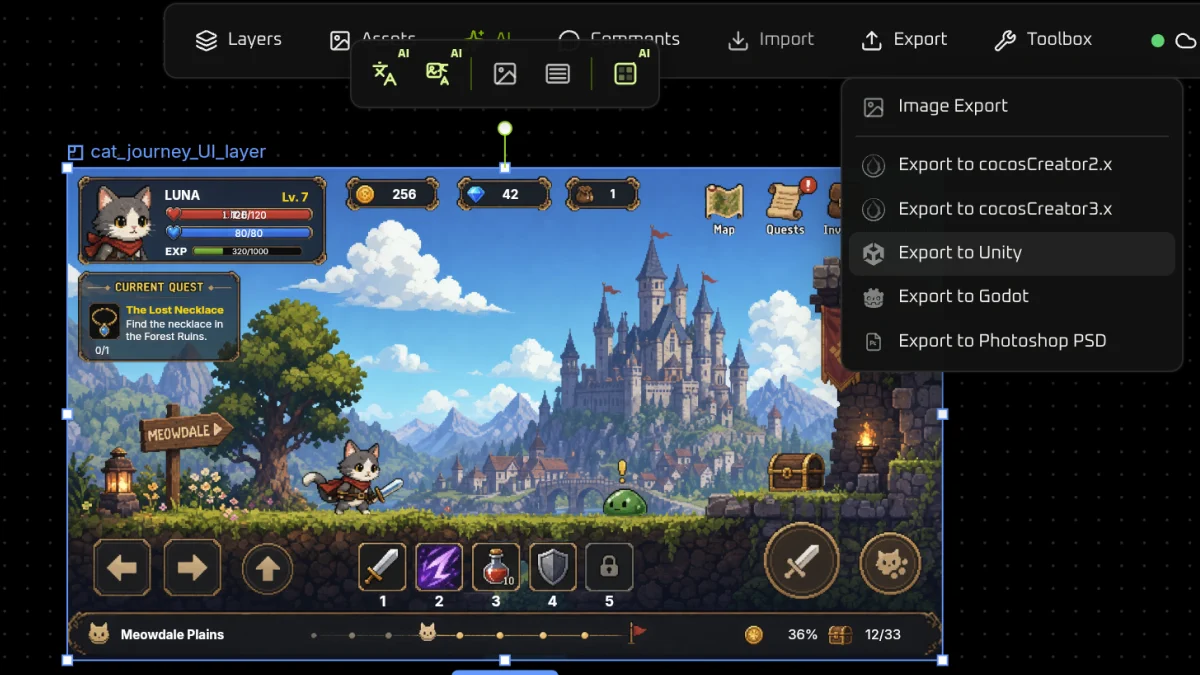
Batch generation and processing of UI art gets finished in VberAI Studio, then imported into Unity. When the design file changes, export again from VberAI Studio, and the hierarchy in the project can still line up with the original layer structure. The open project syncs through Unity MCP. Art sync and code-logic sync have to be done together.
Takeaway
Handling parallel work in game development is not only about updating legacy code.
Walkthrough video
Unity Codex plugin for engine-side code; batch UI art still needs a separate pass.