AI Video
AI Video turns a canvas image and a prompt into a clip. This pass uses Turbo MAX Image To Video. A smaller duration and resolution come back sooner.
TL;DR: 6 steps
AI Video turns a picture already on the canvas, plus a text prompt, into a clip. On the bottom toolbar, open AIGC, then choose AI Video. The model menu includes Seedance 2.0, Veo 3.1 Fast, Seedance 2.5, and Kling Video V3 Pro. This walkthrough uses Turbo MAX Image To Video. Add the plate as the First frame with Pick from canvas, write the prompt, then run it. A shorter duration and a lower resolution come back sooner. This pass is 5 seconds at 480P.
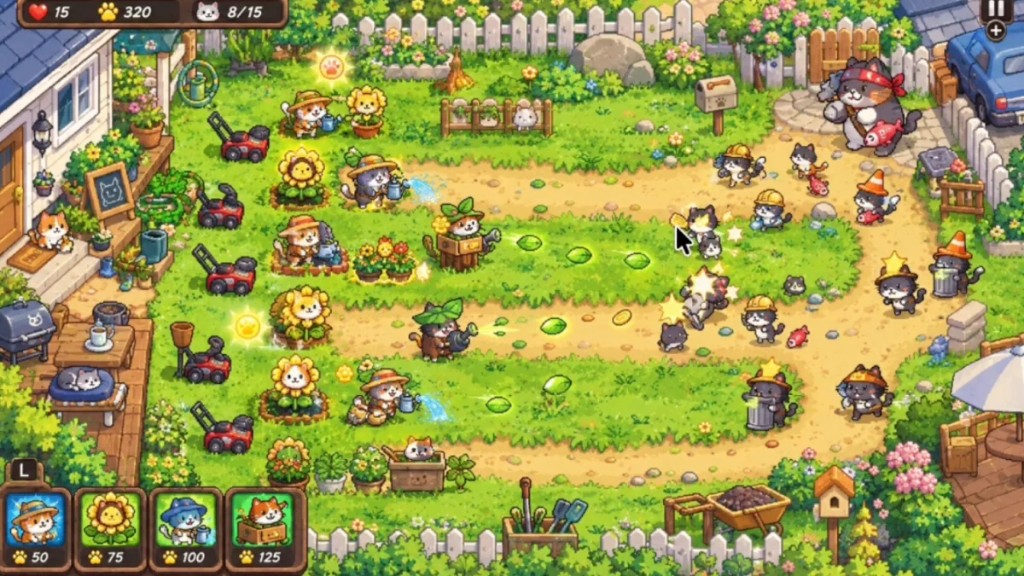
The plate is a cat-garden scene.
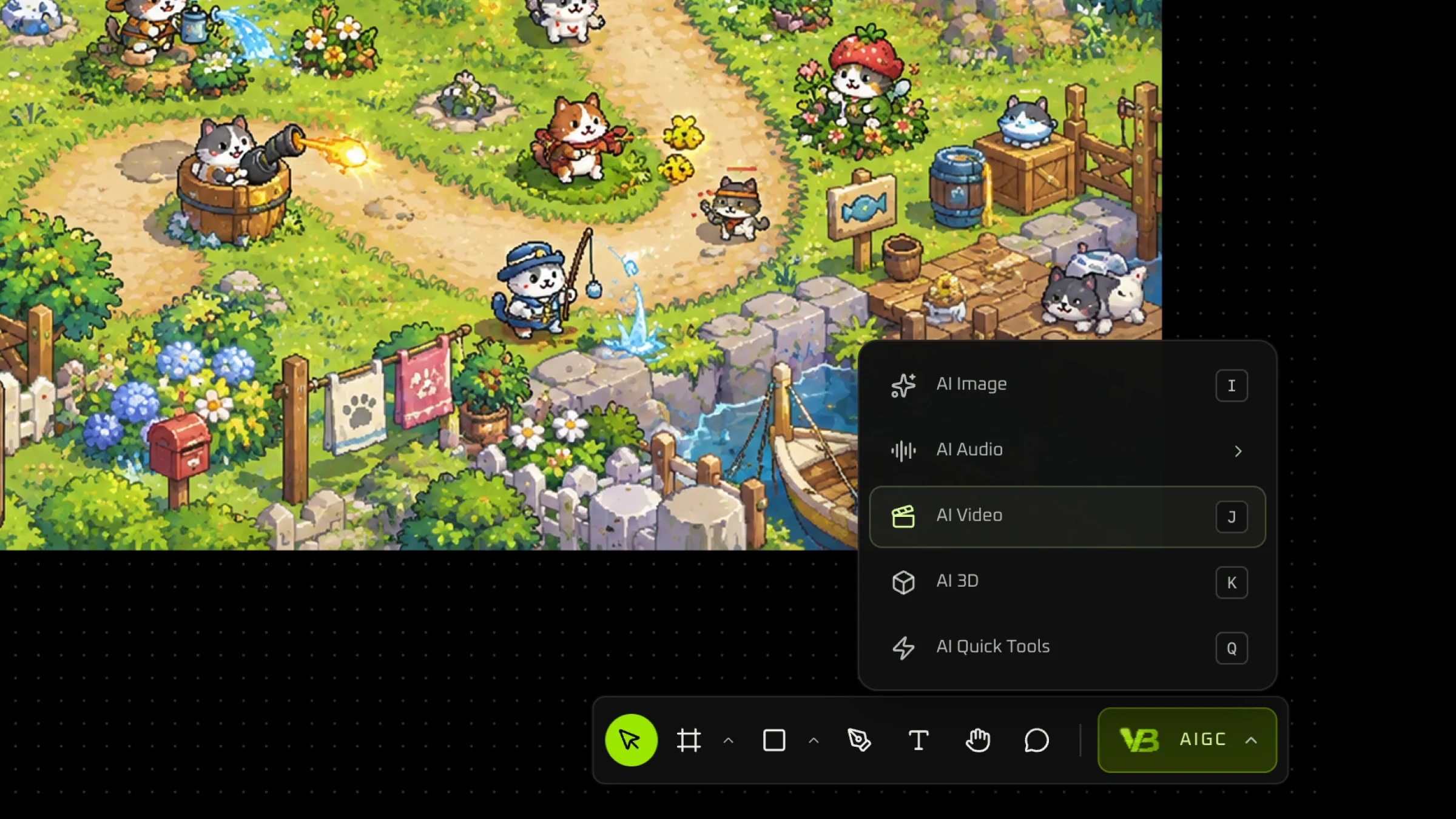
Step 1: Open AI Video
On the bottom toolbar, open AIGC, then choose AI Video.
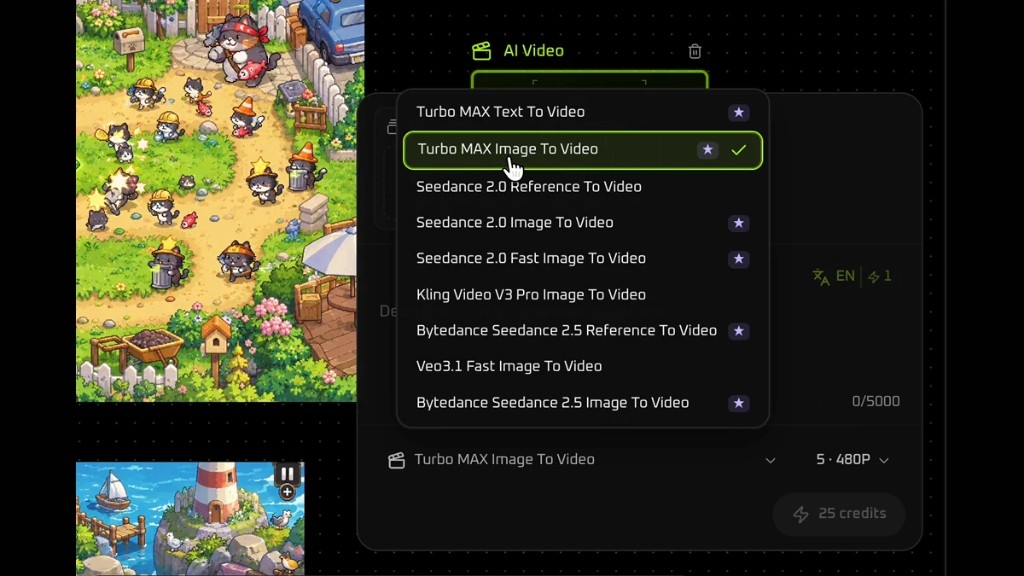
Step 2: Choose the model and the size
Open the model menu. It lists Seedance 2.0, Veo 3.1 Fast, Seedance 2.5, Kling Video V3 Pro, and the Turbo MAX entries. This pass selects Turbo MAX Image To Video.
The control beside the model sets duration and resolution. A smaller size comes back sooner. This pass uses 5 seconds at 480P.
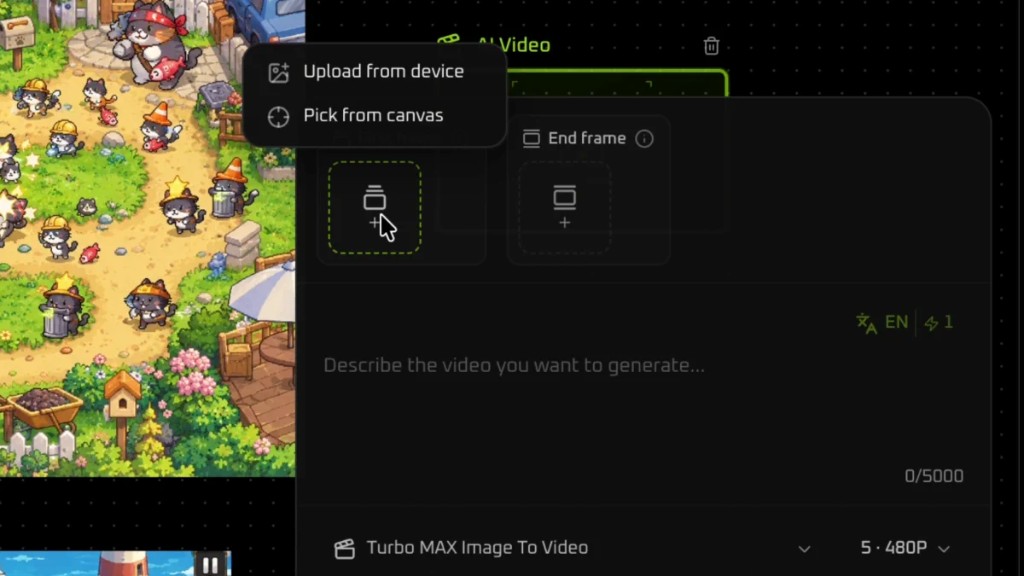
Step 3: Pick a first frame from the canvas
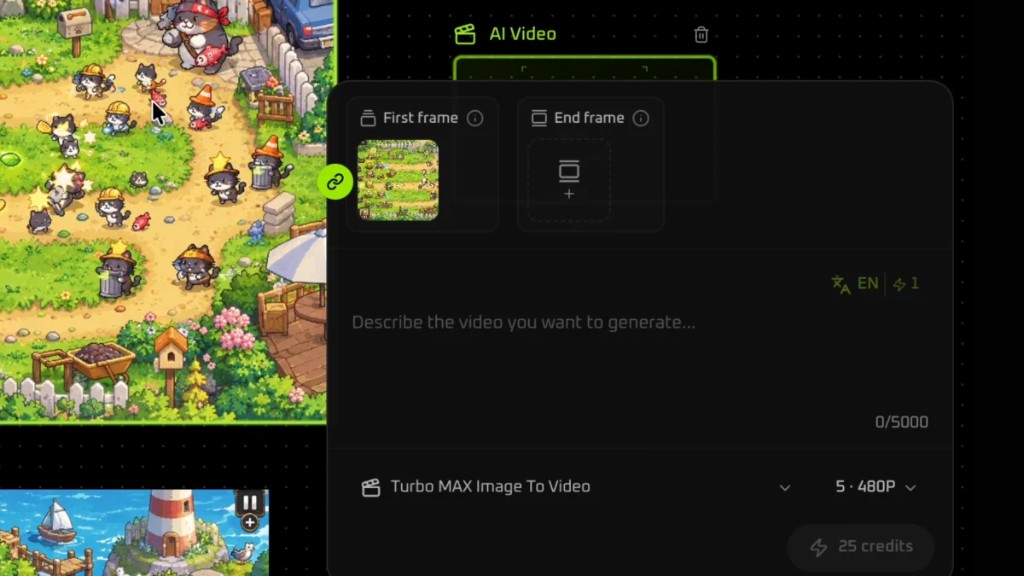
First frame is the starting picture. End frame can stay empty. Click the add control on First frame. The menu lists Upload from device and Pick from canvas. This walkthrough uses Pick from canvas.
Step 4: Click the link icon on the image
Move the pointer onto the plate. A link icon appears on it. Click that icon. The image fills First frame.
Step 5: Write the prompt
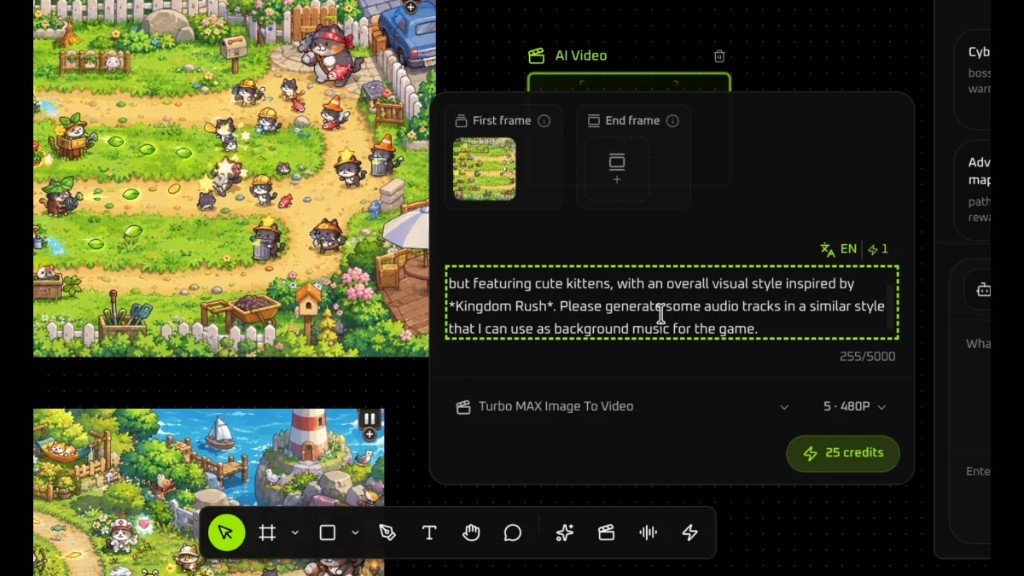
In the description box, write the clip. The text in this pass reads: but featuring cute kittens, with an overall visual style inspired by *Kingdom Rush*. Please generate some audio tracks in a similar style that I can use as background music for the game.
Step 6: Review the clip on the canvas
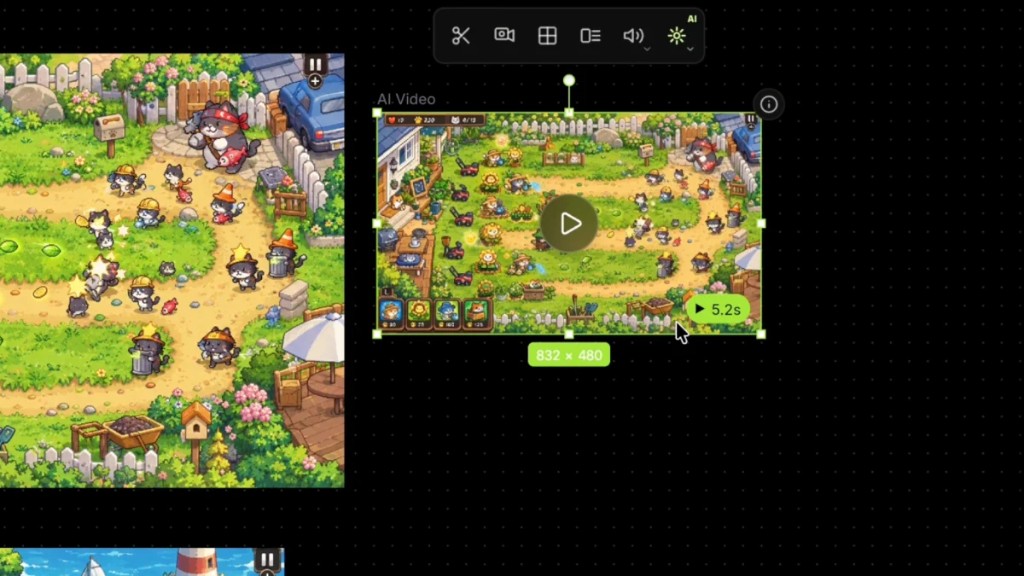
Run the pass. The clip lands on the canvas with a play control. This one is 832×480, and the badge reads 5.2s.
The clip from this pass: