Cocos Creator 3.x MCP
Start Cocos Creator MCP Server, confirm Running, use One-Click Configuration for a mainstream coding tool, then keep Cocos Creator 3.8.6+ and the MCP server open while the tool talks to the project.
TL;DR: 3 steps
Cocos Creator 3.x MCP fits a Cocos Creator 3.8.6+ project that an AI coding tool should see and operate—scenes, nodes, prefabs—not only complete code in a text buffer. Download from Cocos Creator MCP. A 2.4.x project uses Cocos Creator 2.x MCP instead. How the channel works: How MCP Connects AI Coding Tools to Game Engines.
Step 1: Open Cocos Creator MCP Server
Install from the official page, then open Cocos Creator MCP Server. Sign in if the window asks. Keep Cocos Creator 3.x open on the same project.
Step 2: Confirm Running and use One-Click Configuration
On the Server tab, Status should read Running. Default port in this window is 3000. MCP URL is http://127.0.0.1:3000/mcp. Use One-Click Configuration for a mainstream coding tool.
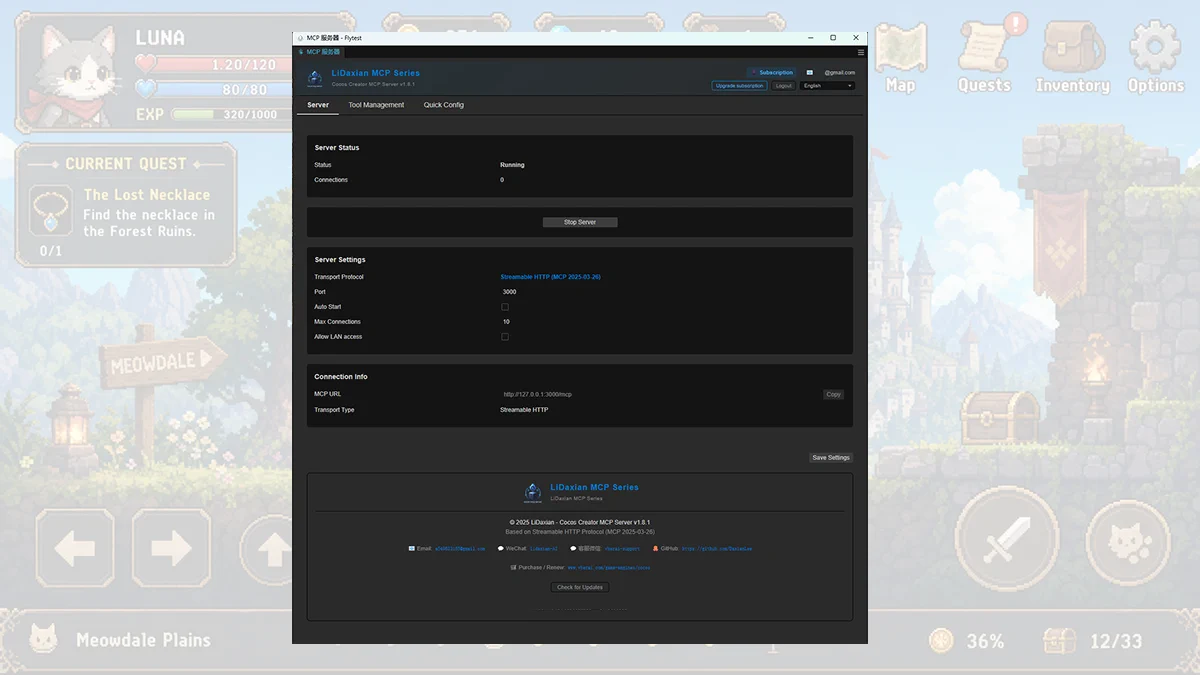
Tool Management and Quick Config are the other two tabs. Transport is Streamable HTTP (MCP 2025-03-26).
Step 3: Attach the AI coding tool
Finish One-Click Configuration. Keep Cocos Creator and the MCP server running while the coding tool talks to the editor through MCP.
Versions, tools, and licenses: vberai.com/game-engines/cocos.