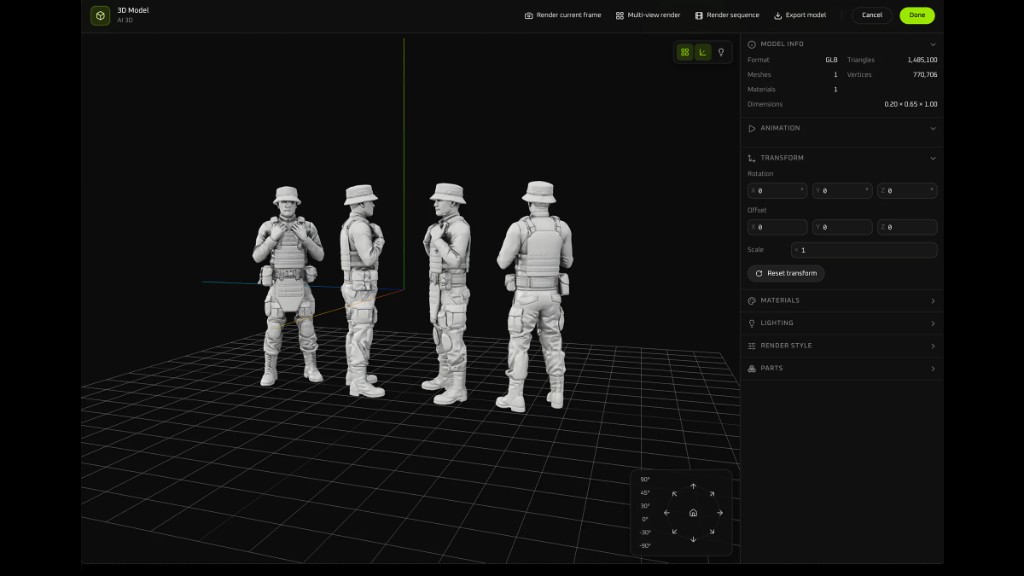
AI 3D
AI 3D turns a reference image into a 3D model on the canvas. Open it from AIGC and stay on Image to 3D. The model menu lists Meshy, Tripo, and the open-source Hunyuan3D. This pass uses Tripo H3.1 Image to 3D, then opens the GLB in 3D Studio.
TL;DR: 5 steps
AI 3D turns a reference image into a 3D model on the canvas. Open AIGC, then AI 3D, and stay on Image to 3D. Meshy and Tripo are the 3D providers. Hunyuan3D, the open-source model, is on the same menu. This pass uses Tripo H3.1 · Image to 3D.
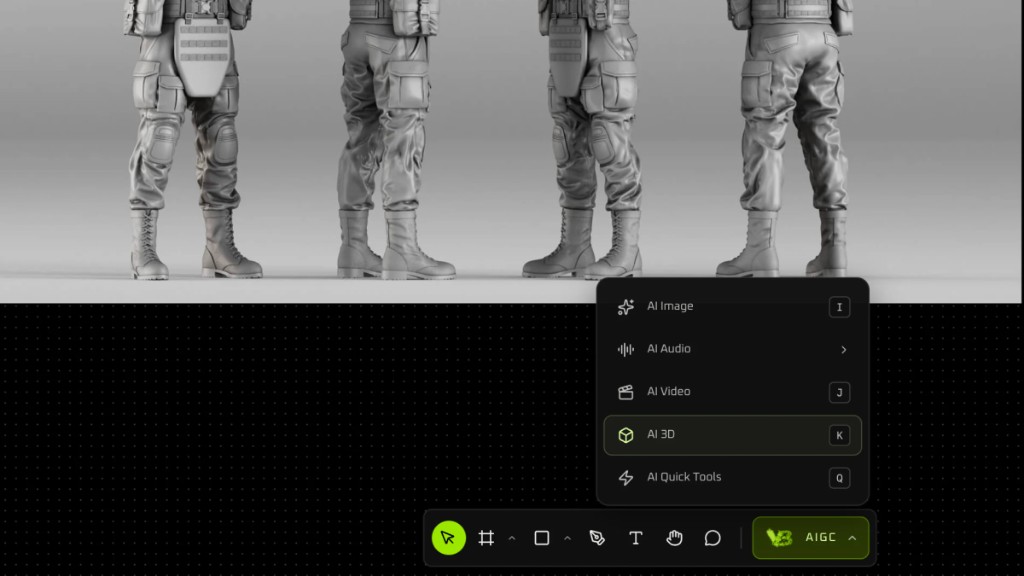
Step 1: Open AI 3D
On the bottom toolbar, open AIGC, then AI 3D.
Step 2: Choose a model
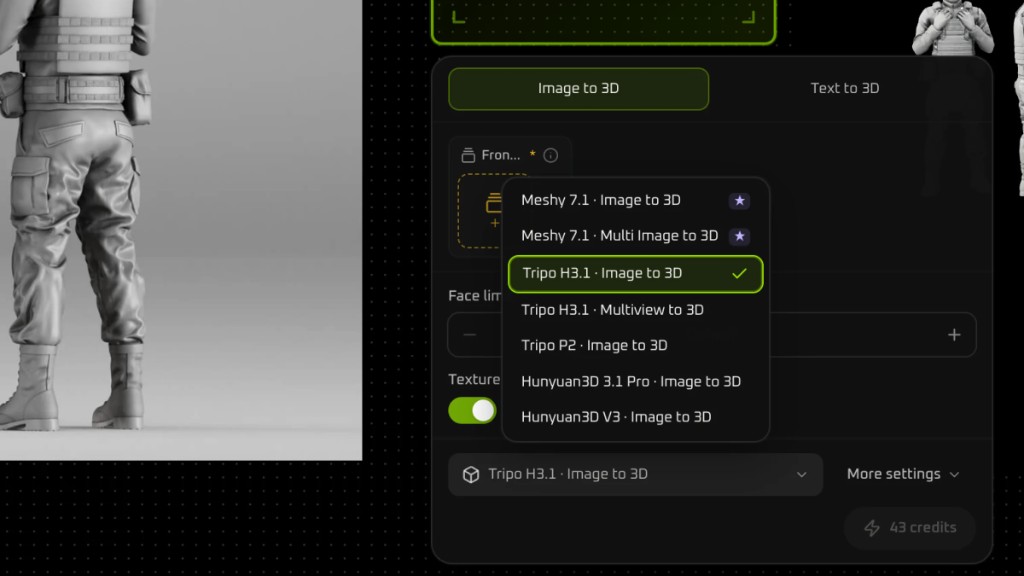
Stay on Image to 3D. Face limit is Default. Texture is on.
Meshy and Tripo:
- Meshy 7.1 · Image to 3D
- Meshy 7.1 · Multi Image to 3D
- Tripo H3.1 · Image to 3D
- Tripo H3.1 · Multiview to 3D
- Tripo P2 · Image to 3D
Open-source Hunyuan3D:
- Hunyuan3D 3.1 Pro · Image to 3D
- Hunyuan3D V3 · Image to 3D
This pass selects Tripo H3.1 · Image to 3D.
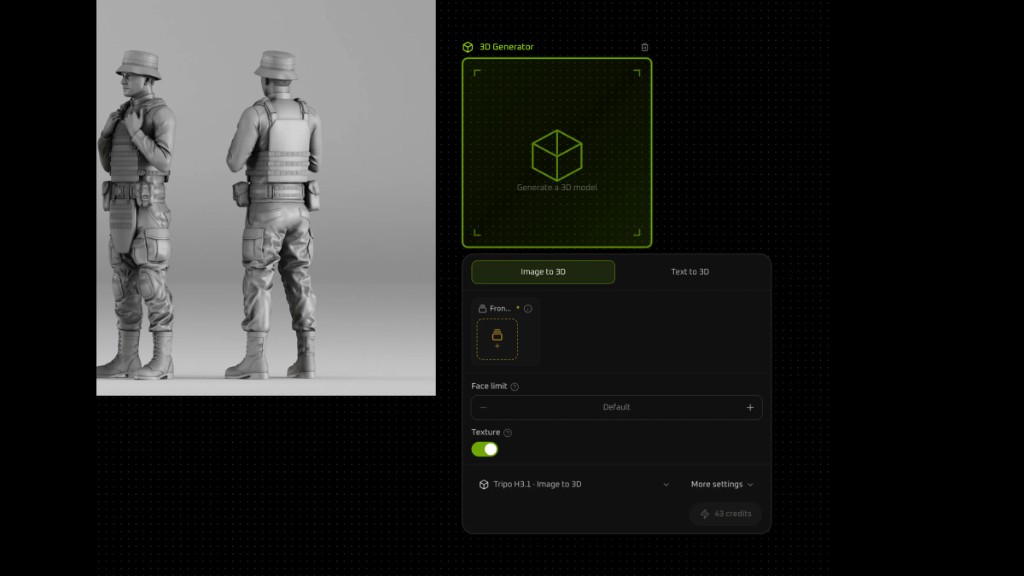
Step 3: Add the reference image
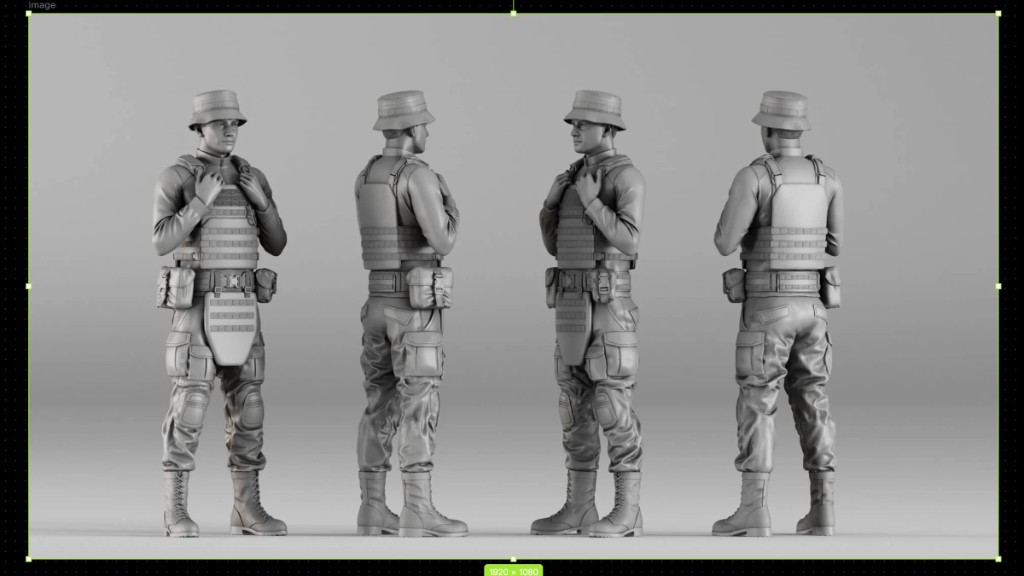
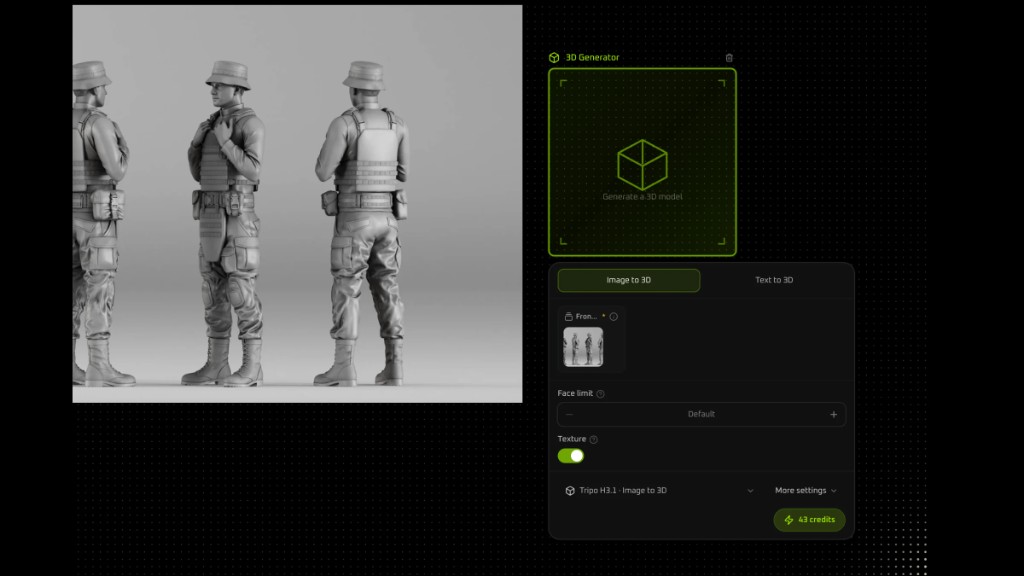
Put one ordinary image in the slot. The site generates the model.
This pass uses a four-view sheet, so the model is four figures.
Step 4: Review the model on the canvas
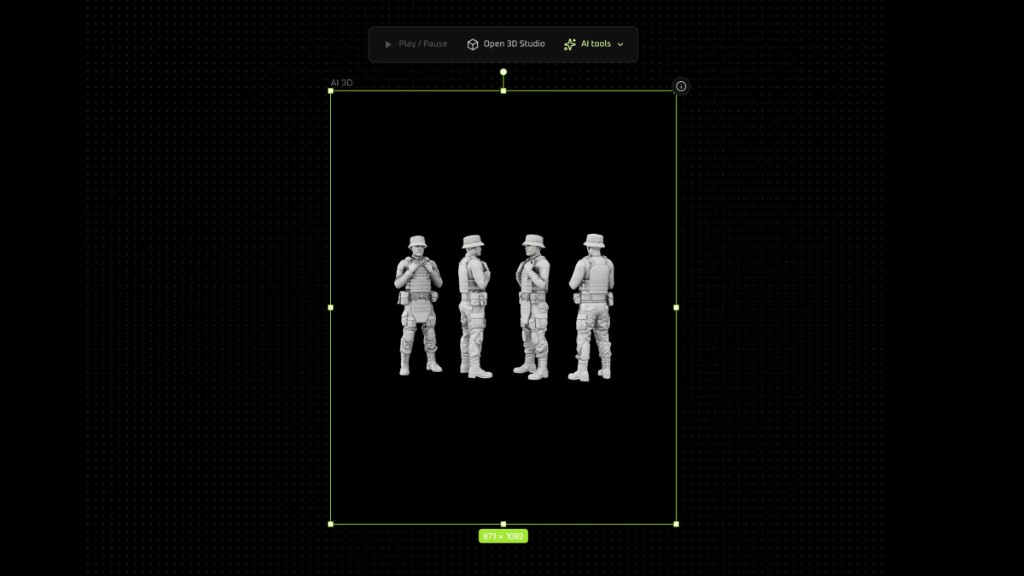
The model lands on the canvas.
- Play / Pause
- Open 3D Studio
- AI tools
Step 5: Open 3D Studio
Open 3D Studio.
Top bar:
- Render current frame
- Multi-view render
- Render sequence
- Export model