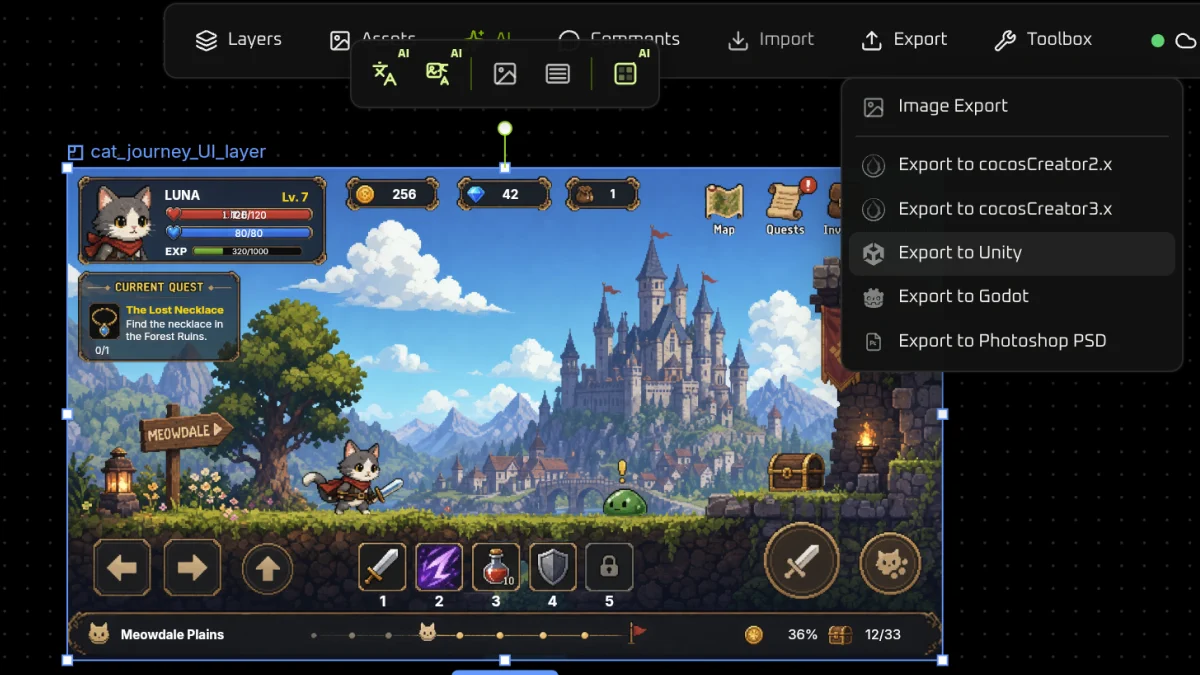
Figma to Unity: after AI First, UI handwork is no longer the center
TL;DR
After this site shipped Figma to Unity, the picture is clear. AI is hitting the old game-development workflow hard. Even the golden-rule list in Saharukh’s May 2026 Figma to Unity no longer blocks progress for at least half of the items. From an AI First view, that is simply more automation on every step that can be automated, and the speed follows.
Every tutorial and published note on this site sits on the same AI First logic: skip mastering the engine first; use AI that already works, and get back to the fun of making a game. The stack that already runs end to end:
- Codex: writes the code
- VberAI Studio: batch-generates and processes art
- Unity MCP: keeps the coding tool and the engine in sync
- Unity: last verification, playtests, and a complete project
Half of the source article’s details no longer hold
The source article’s experience, listed first; the table later matches each line.
A Figma screen that looks good is not a working game UI. The source says the UI has to move, respond, scale, carry multiple states, run on different devices, and stay cheap in a real-time engine. Figma to Unity is not “export one image and stop.”
Figma is the drawing. Unity is the job site. Once the file is in Unity, the real questions show up: can the button be clicked, what happens on hover, what happens when it is disabled, will another language overflow, will the popup fit on phone and PC, is the motion smooth, will the UI drop the frame rate.
A button is not a rectangle plus a line of text. The source lists normal, hover, pressed, disabled, selected, controller focus, sound, click motion, localization, responsive scale, possible glow, and an event wired into gameplay. “Export the button from Figma” sounds light. In a project it is not.
Sliced export is only one slice of the work. The team still has to decide what becomes an image, what is built in Unity, what becomes a reusable prefab, what needs 9-slice, motion, a shader, localization, and keyboard, mouse, touch, or a controller.
Do not export a full screen as one image. The source calls out full screens, buttons with text, fixed-size panels, progress bars as stills, and copy baked into a PNG. Baked copy is hard to translate. A whole panel does not scale. A still progress bar cannot fill smoothly. One huge PNG per screen is heavy and hard to change. A cleaner split: keep text as real text in Unity, build buttons as reusable components, 9-slice panels, fill images or shaders for bars, export icons as sprites, turn repeats into prefabs.
Naming looks boring until the project grows. Rectangle 124, Group 56, Icon copy 9, Frame 32 force a developer or technical artist to guess. The source’s better names: btn_primary_bg, icon_currency_gold, panel_shop_base, hud_health_fill, popup_reward_frame, img_avatar_border_rare.
Think in components, not only in screens. A shop screen splits into header, currency bar, item card, buy button, scroll area, category tabs, confirm popup. Figma components map to Unity prefabs, for example Shop Item Card to PF_ShopItemCard, with icon, name, price, rarity frame, buy button, locked / selected / hover.
Figma layout is not Unity layout. The same UI may hit phones, tablets, PCs, ultrawide monitors, notches and safe areas, other languages, other input. Implementation needs anchors, scale, safe area, layout groups, and flexible spacing. The UI cannot be a sticker on one resolution.
Do not leave motion until the end. Popup fade-in, a slight button scale, a health-bar flash, a reward glow, a shake on error — these tell the player what happened. Late motion fights layout, timing, performance, and gameplay flow.
UI costs performance too. Stacked transparency, large textures, blur, masks, particles, animated icons, messy canvases, too many loose sprites, frequent layout rebuilds. Quiet on a high-end PC. Real on a phone.
The source’s ten-step workflow: clean the Figma file → mark reusable components → decide what to export → prepare size and alpha → import into Unity with texture, compression, and atlas settings → build prefabs → add states → add motion and feedback → try many screens → watch draw calls, memory, overdraw, and canvas rebuilds early.
Mistakes the source tries to avoid: full-screen image export, copy baked into sprites, no button states, one resolution only, random layer names, no localization, no controller or touch, too many unique assets, no atlas, motion too late, no safe area, performance left until the end.
A UI technical artist sits between design and engineering: prepare assets, build prefabs, write shaders, build motion, optimize, make reusable pieces, adapt resolutions, show designers the engine limits, help developers keep the look. The job is described as protecting the design so it survives production.
In a “people first, tools second” era, every line above costs time.
What still holds after AI First, and what is no longer the center
The homepage is direct: organize art with a Figma-like surface, then use engine MCP for tight sync, and split the old labor-heavy steps. Against the source article, that looks like this table.
| What the source still stresses | After AI First |
|---|---|
| A pretty file is not a working UI | Still true. Click, scale, and language still have to be proven in Unity. |
| Sliced export is not the whole job | Still true, but the center moved. The gap is no longer a person deciding every cut by hand. It is whether files land in engine folders that Codex can read. |
| No full-screen export, no baked copy | Still true. The localization note already said: once type is in the image, the whole frame has to be remade. |
Names like Rectangle 124 wreck the project | Still true. Auto Layering cuts from detected edges and writes meaningfully named files. Bad names break prefabs and scripts later. |
| Hover, press, disabled, focus, sound, events | Half true. Those states still have to exist in Unity. They do not have to be hand-built by a UI technical artist before import. Codex plus Unity MCP can add them after the prefab lands. |
| 9-slice, shaders, atlases, canvas rebuilds | Half true. They still blow up on phones. AI First order: get the UI into the project and running, then let Codex inspect the open editor. These are not the entry ticket. |
| Components become prefabs | Still true, and export already covers part of it. Figma to Unity can write Prefab (.prefab); unzip and Assets/Prefabs is assembled UI, Assets/Textures is the cuts. |
| Motion and performance must sit in the pre-export plan | No longer the center. The source put them at steps 8 and 10, as if export cannot happen without that plan. The common path now: export a usable prefab, then add motion and cost work in Unity with Codex and Unity MCP. |
| A UI technical artist must sit in the middle | This drops first for anyone without a game-dev background. The homepage premise is that the engine does not have to be mastered first. The gate becomes: VberAI Studio writes the file into engine folders; Unity MCP hands the open scene and scripts to Codex. |
“UI handwork is no longer the center” does not mean the UI can be sloppy. It means the source’s ten hand steps are no longer the ticket into Figma to Unity.
What this stack actually changed
VberAI Studio hits the labor-heavy first half: clean layers, usable names, decide what to cut, write into Unity’s Assets layout. Import the .fig with Import Project, run Auto Layering, then Export to Unity. That covers how files land in a Unity project folder in a structured way. It does not cover hover states, localized type size, or whether particles look good — the source’s back half, which a design tool should not pretend to finish in one pass.
Unity is still where proof happens. After the prefab is in the scene, the source’s questions remain: can it be clicked, does another language overflow, does the notch cover it, does the frame rate drop.
Unity MCP covers what MCP can do and a design tool cannot: sync the current scene, hierarchy, and scripts to the AI tool. Exporting Figma designs to Godot already split the jobs the same way: MCP keeps development and scene context; the design tool keeps editing the file and exports into engine folders when needed. Unity uses the same split.
Codex covers the wiring the source left to a UI technical artist or programmer: hook button events, add a few states, keep text as translatable text, try more than one resolution. This site’s stance is a designer who can write basic code, not an engine specialist. If that wiring still required a full UI framework by hand first, AI First would stall.
The four pieces in sequence:
- Generate the game UI as screenshots with AI image tools, then do only edge-case cleanup and fixes in Figma.
- Import in VberAI Studio, run Auto Layering, export Unity
Assets(prefabs plus cuts). - In the open Unity project, let Unity MCP show Codex the current UI tree.
- Let Codex add interaction, states, and basic fit. When the art changes, export again from VberAI Studio instead of renaming textures by hand in the engine.
The source’s UI technical artist protected the design so production would not lose it. The protection now is different: layers and names already line up at export. A person judges the result. Codex does the edits in the engine.
Baking every string into a layer looks clumsy today. It may stop being a problem if the cost and convenience of AI generation plus auto-labeling already beat the old total cost of hand edits.
Takeaway
- AI is eating the parts of game development that were still manual.
- VberAI Studio has already run one more AI First pass along this vertical. Tools in this class will speed game development up at a larger scale.
- The space this stack has not automated yet will shrink fast.