Godot MCP
Start Godot MCP, confirm Running, use One-Click Configuration for a mainstream coding tool, then keep Godot 4 and the MCP server open while the tool talks to the project.
TL;DR: 3 steps
Godot MCP fits a Godot 4 project that an AI coding tool should see and operate—scenes, nodes, scripts—not only complete code in a text buffer. Download from Godot MCP. How the channel works: How MCP Connects AI Coding Tools to Game Engines.
Step 1: Open Godot MCP Server
Install from the official page, then open Godot MCP Server. Sign in if the window asks. Keep Godot 4 open on the same project.
Step 2: Confirm Running and use One-Click Configuration
On the Server tab, Status should read Running. Default port in this window is 2000. Endpoint is http://127.0.0.1:2000/mcp. Use One-Click Configuration for a mainstream coding tool.
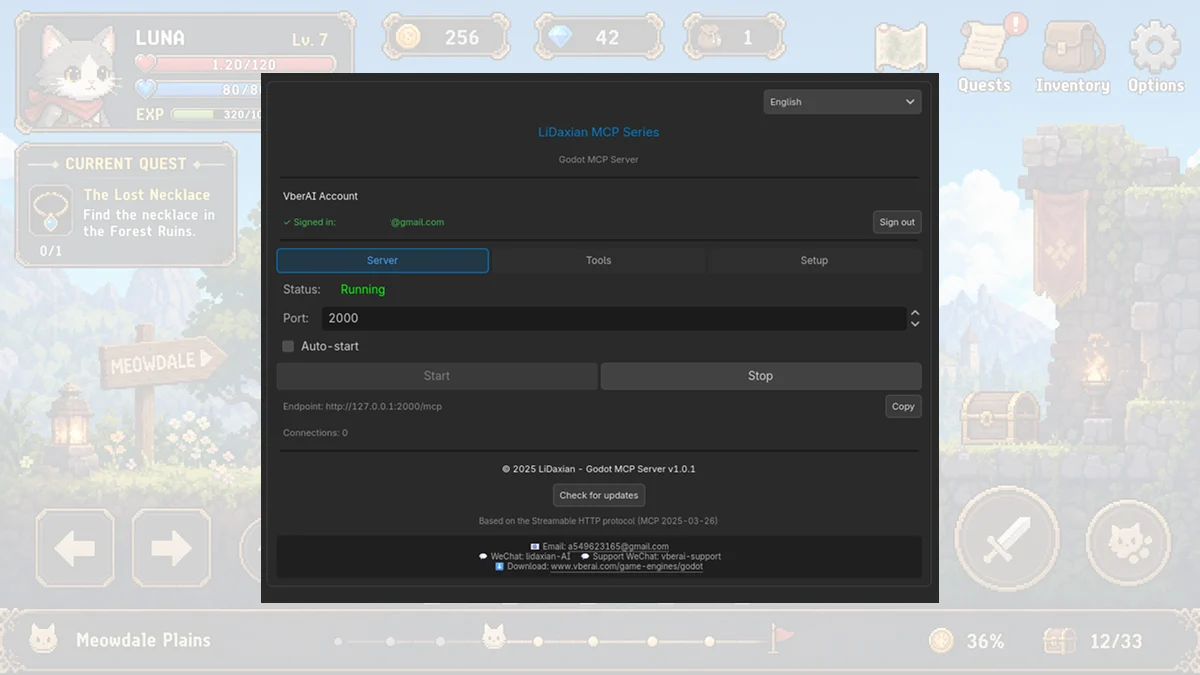
Start / Stop sit on that tab. Tools and Setup are the other two tabs. Transport is Streamable HTTP (MCP 2025-03-26).
Step 3: Attach the AI coding tool
Finish One-Click Configuration. Keep Godot and the MCP server running while the coding tool talks to the editor through MCP.
Versions, tools, and the installer: vberai.com/game-engines/godot.