PSD to Godot
Import a layered PSD or PSB into VberAI Studio and export a Godot scene.
TL;DR: 3 steps
PSD to Godot fits a layered Photoshop file—PSD or PSB—that needs to land in Godot as a scene. VberAI Studio imports the design, then exports to Godot. Export writes a .tscn; default paths follow Godot’s Assets layout.
A .fig instead: Figma to Godot. A flat PNG that still needs layers: PNG to PSD.
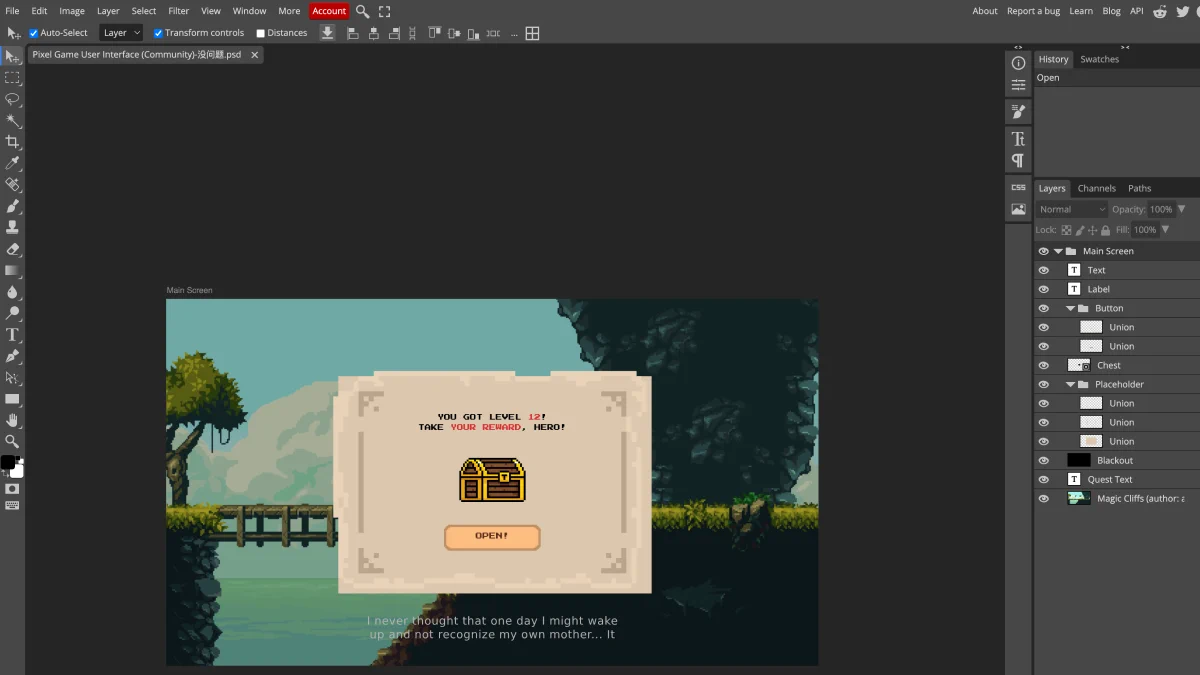
Step 1: Open the layered PSD
Keep named groups (frames, buttons, HUD bars). Those names carry through into Studio and the Godot node tree.
Step 2: Import PSD/PSB
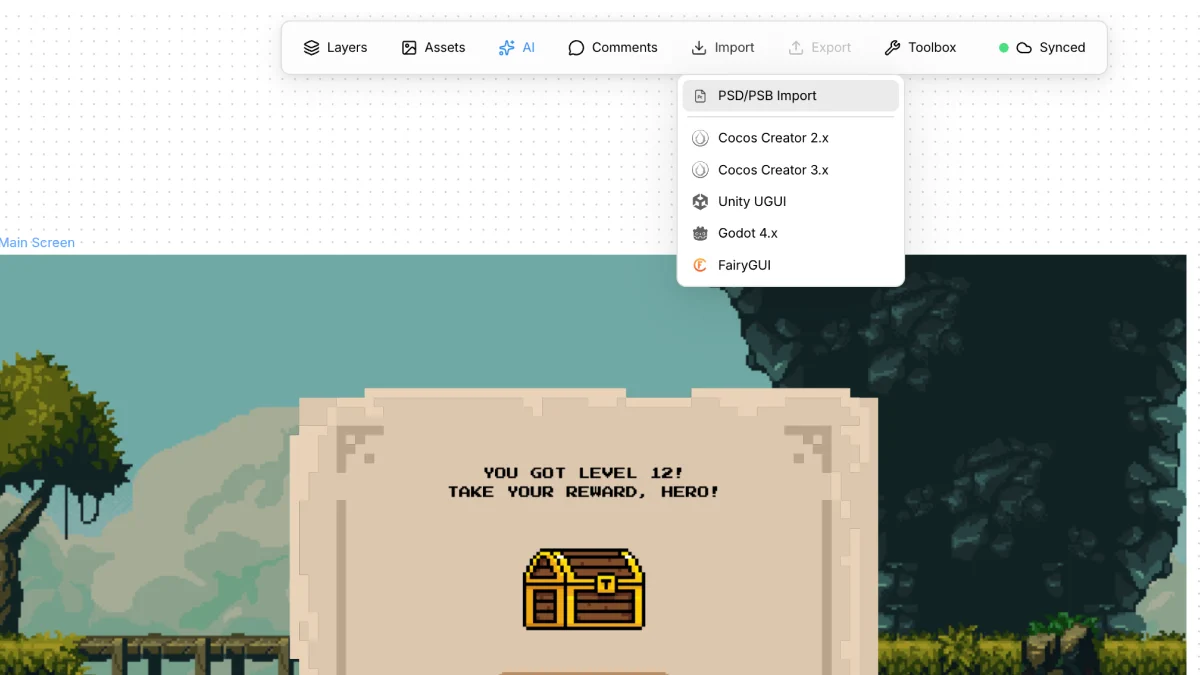
In Studio choose Import → PSD/PSB.
Step 3: Export to Godot
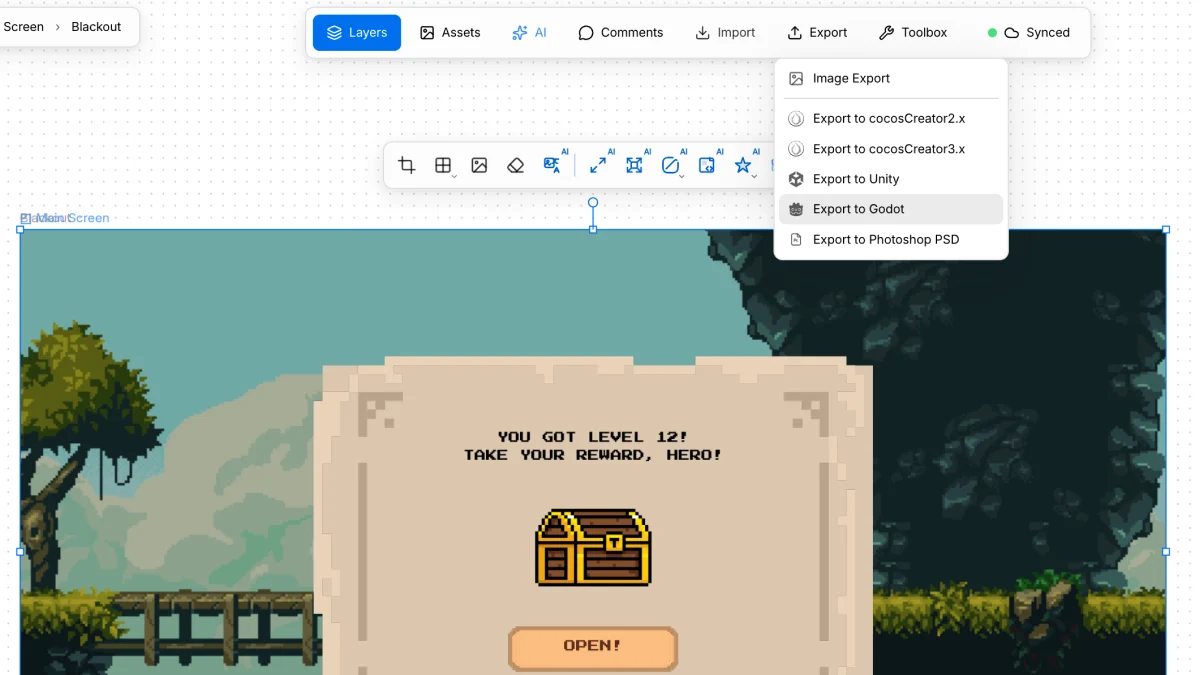
Select the screen (for example Main Screen). Open Export and choose Export to Godot.
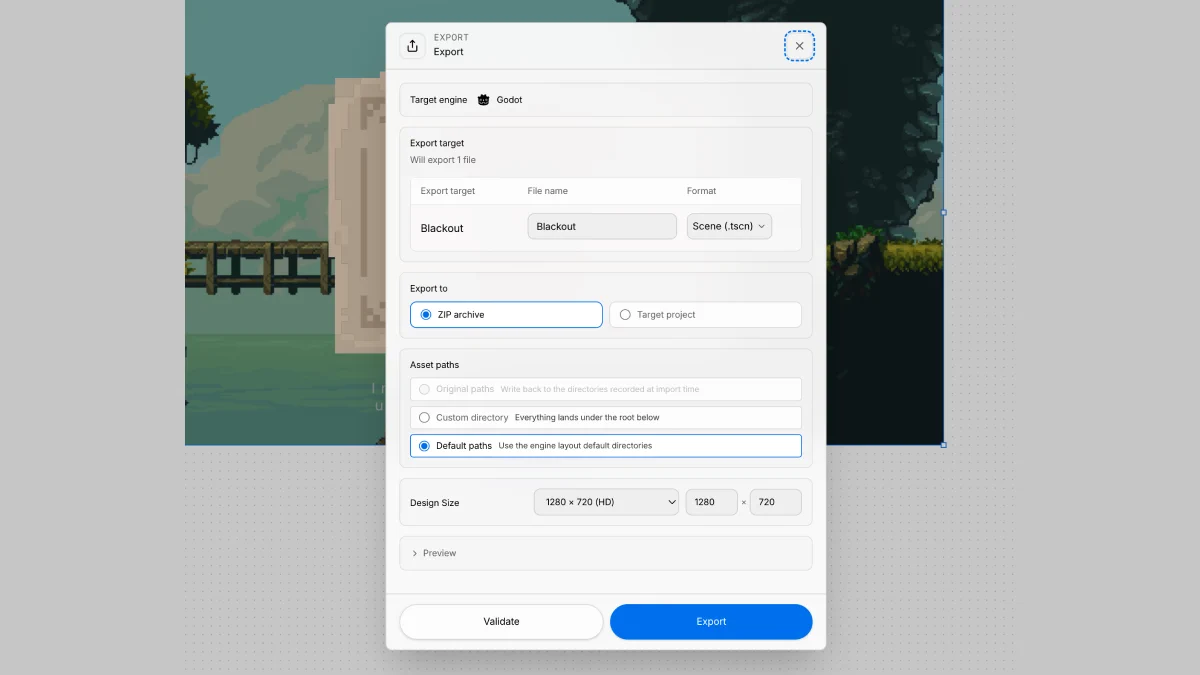
In the dialog, set format to Scene (.tscn). Default paths looks up the project’s Assets folder and writes into that layout.
Walkthrough video
PSD/PSB import and Godot export: