Godot AI Art Workflow: Batch Processing, and Sync Between Generation and Code
TL;DR
The common Godot AI art workflow looks like this: prompt an image, remove the background, cut a sprite sheet, drop PNGs into Godot’s res://, set Nearest, and hang them on AnimatedSprite2D or Control. In practice that logic is already outdated—if Cursor, Claude Code, and Codex are already in heavy daily use. What the current development workflow should watch is how batch processing of art is handled across the whole flow, and how batch generation stays in sync with code logic.
The common flow still stops at five steps
The usual write-up still lines up like this: write a prompt, have an image model draw a character, a scene, or a UI. Then remove the background, clean edges, unify size. Then cut a grid into sprites and name them. Then drag the files into a Godot project. Then set the filter in the editor, hang the image on a node, and play animation or clicks from a script.
Yes, this is last-century practice, uncle. Godot’s official tutorials still feed AnimatedSprite2D and SpriteFrames a single grid sheet that way. The community path from Figma into Godot is also usually an Exporter plus an Importer, one pass, and done.
When coding tools are already in heavy use, what is missing is batch processing, and whether layer context can travel with the files. When a holiday needs a new UI set, nodes that were already wired often no longer line up. Generating a new theme with AI hits the same gap. Drop a PNG into res://, and what lands in the coding tool is a filename. Whether that piece is a button is not in that context.
After generation, three steps still have to be watched
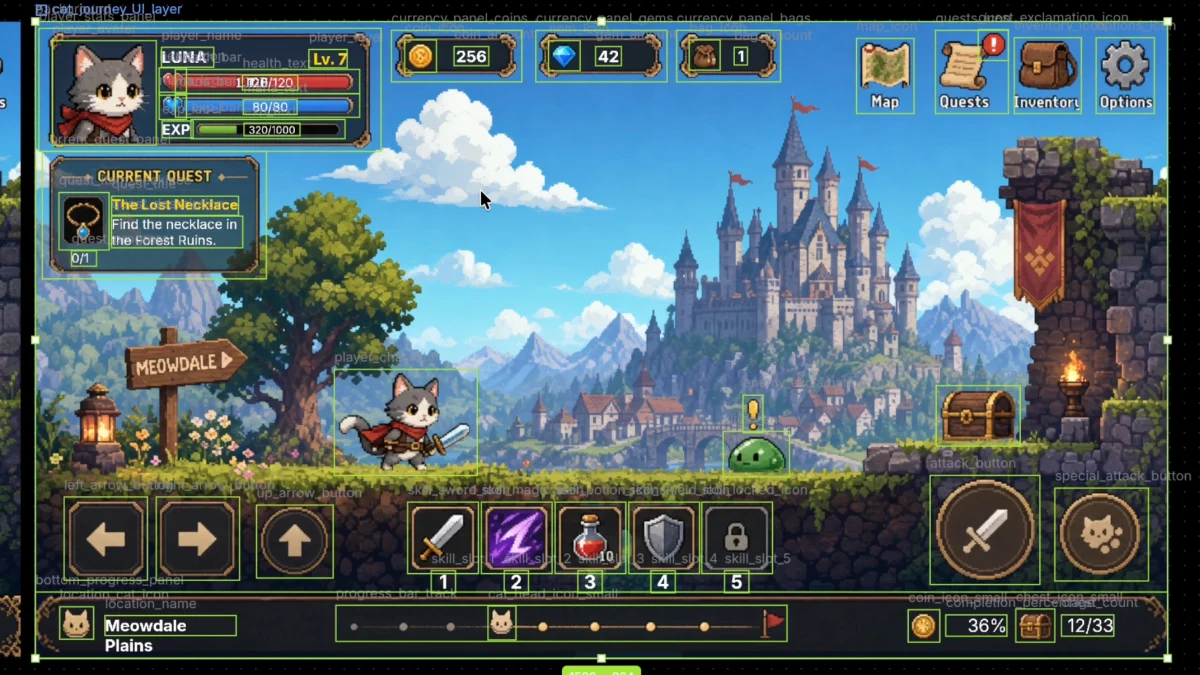
An AI-generated flat plate still needs a lot of automation before it matches the node tree. An image model returns a composite. HUD, buttons, and health bars sit on one bitmap. In Godot, treating the whole screen as one Sprite, or cutting cell by cell by hand, is not finished work. If every cut still has to be renamed by hand, or the auto-split names such as Part 26 are used as-is, that piles too much useless context onto later AI coding.
One image at a time cannot carry later changes. The prompt can be run again; the result is another new image. Layer relationships, sizes, and which piece is clickable do not travel onto the next plate. When Halloween needs a reskin, the common flow’s “export another PNG” rewires the whole stretch. When Valentine’s needs another set, the same gap shows up.
Live mapping between a large set of unstructured, unorganized cut images and the code project is a step that has to be taken seriously. Through MCP, an open Godot project can connect to Cursor. The current scene and scripts can be read. That only holds if the cuts are already written into engine folders, and the nodes still keep the original names. Figma to Godot importers are one-way already covered this: a one-pass Exporter or Importer does not cover regeneration. In a Godot AI art workflow, the same gap sits after the image is generated.
The path already in practice: time saved goes to gameplay design
Put the post-generation work in VberAI Studio, then import into Godot. Cutting, naming, and exporting into folders no longer take the whole day. The time saved can go to actual gameplay design.
If the UI is still a flat PNG, select that screen on the board, open the overlapping-layers menu, and run Auto-Layering. Cuts come from detected edges, with meaningful names on the files. Steps: Auto Layering: Image to Layers. When a Photoshop file is needed, the same layers can go PNG to PSD, then PSD to Godot.
When the source is already a grid sprite sheet with clear gaps between pieces, use Auto Split. It cuts to single images on the local machine. Names carry sequence numbers; those still have to be changed to readable names before they enter the engine. Notes: Auto Split.
When a holiday needs a new look, do not export another set that no longer matches the original names. Select the already-layered board and run AI Reskin. Layer relationships and sizes still correspond one-to-one; export another round. Notes: Reskin.
If the source is in Figma, use Import Project to read the .fig, then Export to Godot. The export produces .tscn, written by default into Godot’s Assets folder. Steps: Figma to Godot. When the design file changes, export another round from VberAI Studio. Nodes in the project can still line up with the original layer structure.
On the code side, the open scene and scripts go to the coding tool through Godot MCP. Art sync and code-logic sync have to be done together. Dropping PNGs into res:// stops at “the image is in the project.” Without node names and layer context, later AI coding still cannot line up events.
For background removal, do not cut a HUD with a photo-matting tool. AI Background Removal in VberAI Studio is aimed at keeping buttons and bars, and dropping the scene floor.
Takeaway
Do not trust the standard flow an AI recites, especially now that AI is everywhere. Think early about how to schedule and sync data after multiple AI generation sources. That is what will open a real gap.